A lost folder is annoying. Losing a week of customer bookings, invoices, project files and emails can stop a small office in its tracks. The best backup methods for small offices are not about buying the most expensive kit. They are about making sure you can get back to work quickly after a deleted file, failed Mac, stolen laptop, ransomware attack or office flood.
For many local businesses, the problem is not that there is no backup at all. It is that the backup has never been checked, only one person knows how it works, or the only copy sits beside the computer it is meant to protect. A sensible backup plan removes those weak spots without making daily work harder.
What a small-office backup needs to protect
Start with the information that would genuinely hurt to lose. This often includes customer records, accounts data, quotations, contracts, payroll documents, email, shared project folders and photos. If your business uses a Mac, iPad or iPhone as part of its day-to-day work, consider the data held on those devices too, particularly files saved locally or photographs taken on site.
Software and settings matter as well. Replacing a failed computer is inconvenient; rebuilding user accounts, email settings, specialist applications and access to shared services can take far longer than expected. A good backup makes recovery practical, not merely possible.
Before choosing a service or drive, decide two things: how much data you have, and how long you could realistically operate without it. A sole trader may be able to work from a temporary laptop for a day. A busy office taking orders or managing care records may need access within hours. That recovery time should shape the plan.
The best backup methods for small offices
The most dependable approach is usually a combination rather than one product. Each method covers a different kind of failure.
Encrypted cloud backup
A dedicated cloud backup service automatically copies selected computers and folders to secure off-site storage. If the office is burgled, a hard drive fails, or a local disaster affects the premises, the backup remains elsewhere. That is its biggest advantage.
Cloud backup is especially useful for Macs that travel between home, client sites and the office. It can run quietly in the background, so staff do not need to remember a weekly task. Look for encryption, version history and clear controls over which folders are included. Version history is vital because it allows you to restore an earlier copy when a file has been overwritten or encrypted by ransomware.
There are trade-offs. Your initial backup can take time on a modest broadband connection, and restoring a large amount of data may not be instant. Cloud storage also needs monitoring. A green tick in an app means little if the wrong folders were selected or a device has not backed up for months.
Local backup to an external drive or NAS
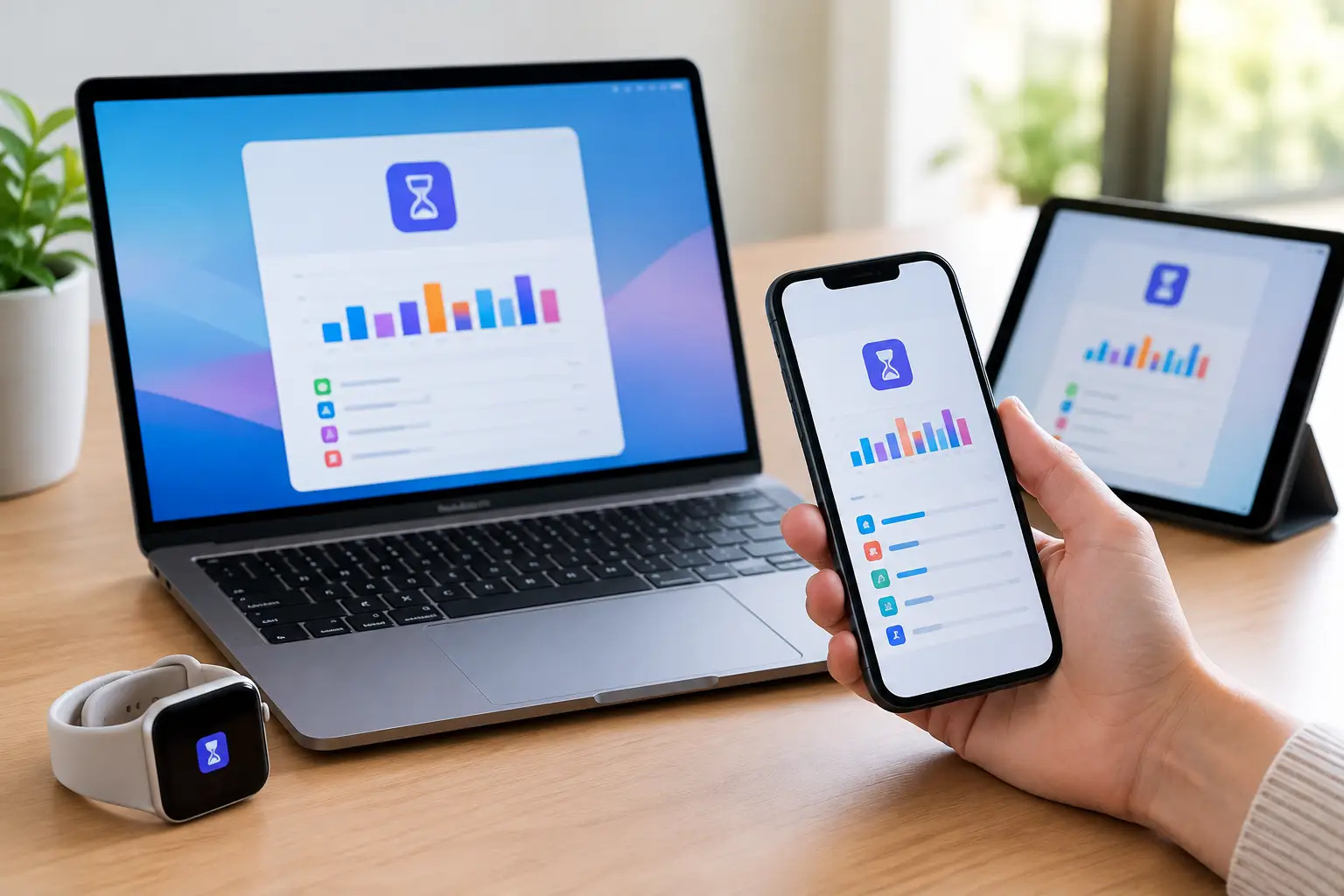
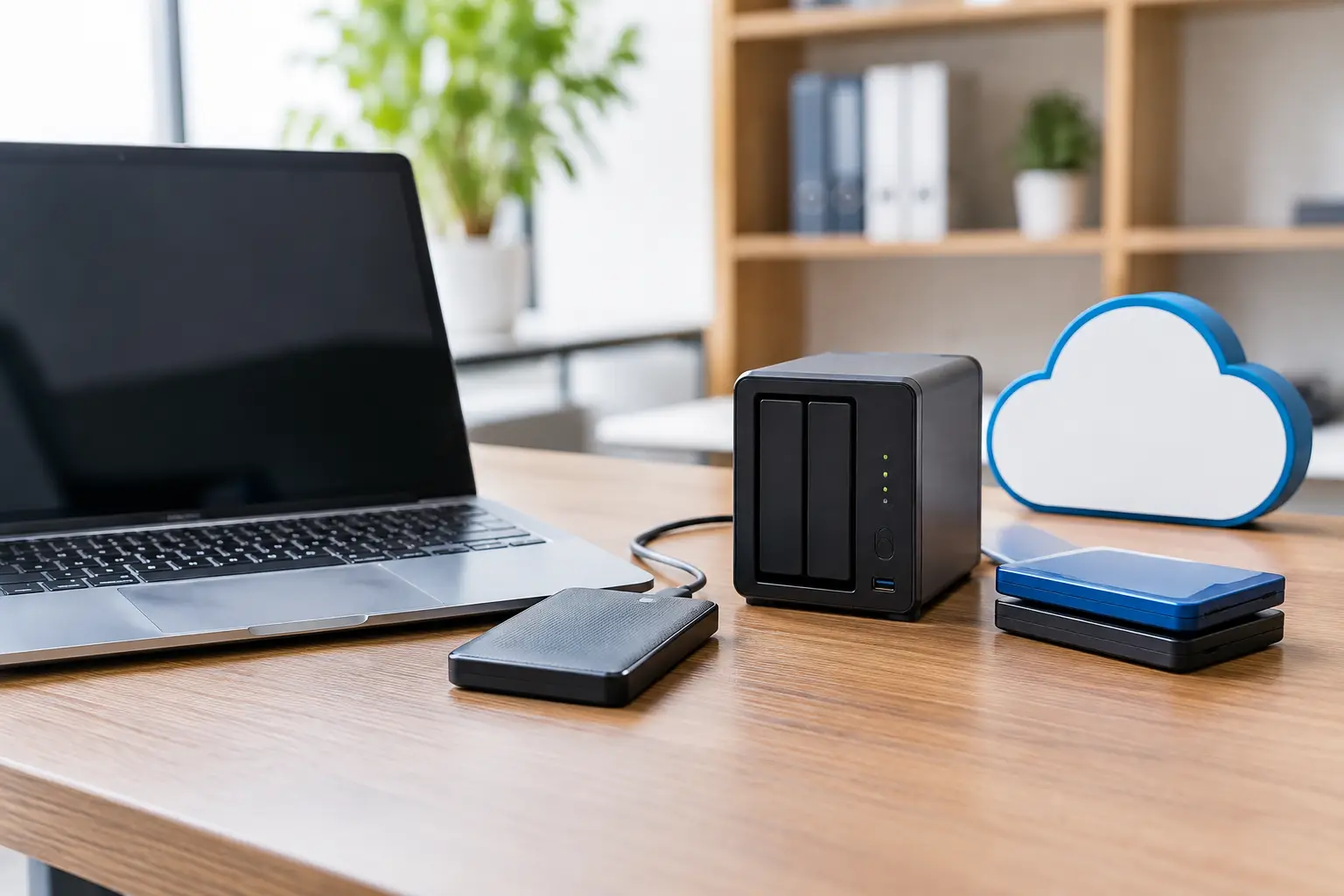
A local backup is stored on an external hard drive, SSD or network-attached storage device, often called a NAS. For a small Mac-based office, Time Machine to an encrypted external drive can be a straightforward way to keep regular copies and retrieve an individual file quickly.
Local backups are generally fast to create and fast to restore. They are useful when somebody accidentally deletes a spreadsheet, when a Mac needs replacing, or when a broadband outage makes cloud access difficult. A NAS can also provide shared storage and backup for several computers, but it needs careful setup, user permissions and ongoing maintenance.
The limitation is simple: a drive in the same office is vulnerable to the same theft, fire, water damage or electrical incident as the computers. It should not be the only backup. If you rotate external drives, keep one safely away from the premises and make sure the rotation actually happens.
Cloud file storage and synchronisation
Services such as iCloud Drive, OneDrive, Google Drive and Dropbox are excellent for sharing current files and working across devices. They can be part of a sensible setup, particularly for teams already using Microsoft 365 or Google Workspace.
However, synchronisation is not the same as backup. Delete a shared folder, make an unwanted change, or allow ransomware to encrypt files, and those changes may synchronise everywhere. Some platforms retain previous versions and deleted files for a period, but the rules vary and retention may not meet your needs.
Use cloud file storage for collaboration, then protect it with a separate backup policy or service where appropriate. This is an area where small offices often assume they are covered when they are only partially protected.
Image backups for quick computer recovery
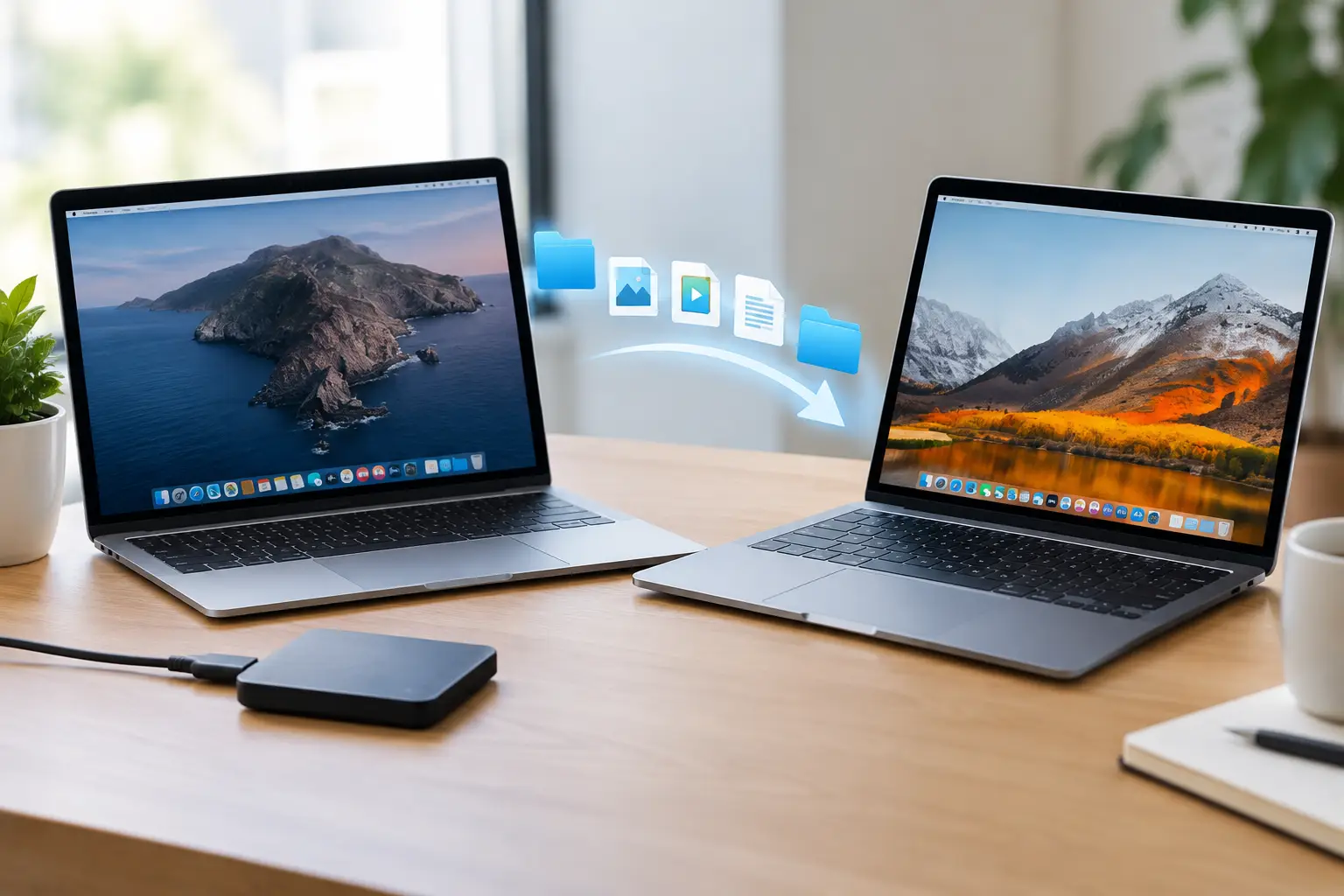
An image backup captures an entire computer or system volume, including applications, settings and files. It can save considerable time after a serious hardware fault because you are restoring a working setup rather than starting from scratch.
This option is particularly worthwhile for a Mac running specialist business software, a shared office computer, or a machine set up with several user accounts and carefully configured email. It takes more storage and a little more planning than file-only backup, but the reduced downtime can be worth it.
On modern Macs, the right method depends on the hardware, macOS version and how the machine is used. That is one reason not to copy an online checklist blindly. A plan should fit the equipment you actually have.
Use the 3-2-1 rule, with a practical twist
The familiar 3-2-1 rule is still a sensible starting point: keep three copies of important data, on two different types of storage, with one copy kept off-site. For a small office, that might mean the live files on your computers and cloud platform, a local encrypted Time Machine or NAS backup, and an encrypted cloud backup held away from the office.
There is one useful addition: make one copy difficult to alter or delete. Ransomware can spread through connected drives and synced folders. A backup service with protected version history, restricted access or immutable storage gives you a better chance of recovering clean data after an attack.
You do not need to turn a small business into a data centre. You do need to avoid a single point of failure. One laptop, one external drive, or one person’s personal cloud account is not enough for business-critical information.
Security and access are part of the backup plan
Backups often contain the most sensitive information in a business. Protect them accordingly. Encrypt external drives, use unique strong passwords, and turn on multi-factor authentication for backup and cloud accounts. Keep recovery codes somewhere secure that is not only inside the affected computer or email account.
Decide who can restore data and who can change the backup settings. If the business owner is away or unwell, can somebody else access the recovery information? Document the answer in plain English, including account ownership, device names, where drives are stored and whom to call for help.
Be cautious about staff using personal accounts for work files. It can create real difficulty when someone leaves, changes their password or accidentally removes shared information. Business-owned accounts provide clearer control and continuity.
Test restoration before there is an emergency
A backup that has never been restored is an assumption, not a plan. Every few months, choose a harmless test: restore a deleted document to a separate folder, retrieve an older version of a spreadsheet, or confirm that a replacement Mac can access the essential files and email.
The test will reveal practical gaps. Perhaps a key folder is excluded, the backup drive is full, a staff member does not have permission to restore a file, or the internet connection makes a large cloud recovery slower than expected. Finding this out on a quiet afternoon is far better than discovering it during a Monday morning outage.
It also helps to write a short recovery checklist. Include the order of priorities: customer communications first, then accounts, then project files, for example. A clear checklist saves valuable time when people are under pressure.
Choosing the right setup for your office
A one-person consultant with a MacBook may be well served by encrypted Time Machine backups plus automatic cloud backup and properly managed cloud file storage. A five-person office with shared files may need a NAS, cloud collaboration tools, off-site backup and clear user permissions. A business handling sensitive client information may need tighter retention, encryption and access controls.
The right answer depends on your data, broadband, budget, working pattern and tolerance for downtime. What should not vary is the principle: keep more than one copy, keep one away from the office, and check that you can restore it.
If you are unsure what is currently protected, North Dorset Mac Man can review the Macs, drives, cloud accounts and shared folders your business relies on, then explain a sensible plan without the jargon. The most reassuring backup is the one you understand, can test, and can rely on when the day goes wrong.