A new Mac should feel like an upgrade, not a week spent hunting for old photos, passwords and client folders. Knowing how to migrate Mac data properly means more than copying a few documents across. Your email accounts, user settings, applications, photos, desktop files and sometimes years of business records may all need to make the journey safely.
The good news is that Apple provides reliable tools for the job. The less-good news is that the best method depends on the age and condition of both Macs, how much data you have, and whether you are moving a home setup or a working machine that cannot afford much downtime.
Before You Move Anything, Make a Backup
Treat migration and backup as two separate jobs. Migration copies data to the new Mac. A backup gives you somewhere safe to return to if a file is missed, the old Mac develops a fault, or you later realise an archive was stored in an unexpected place.
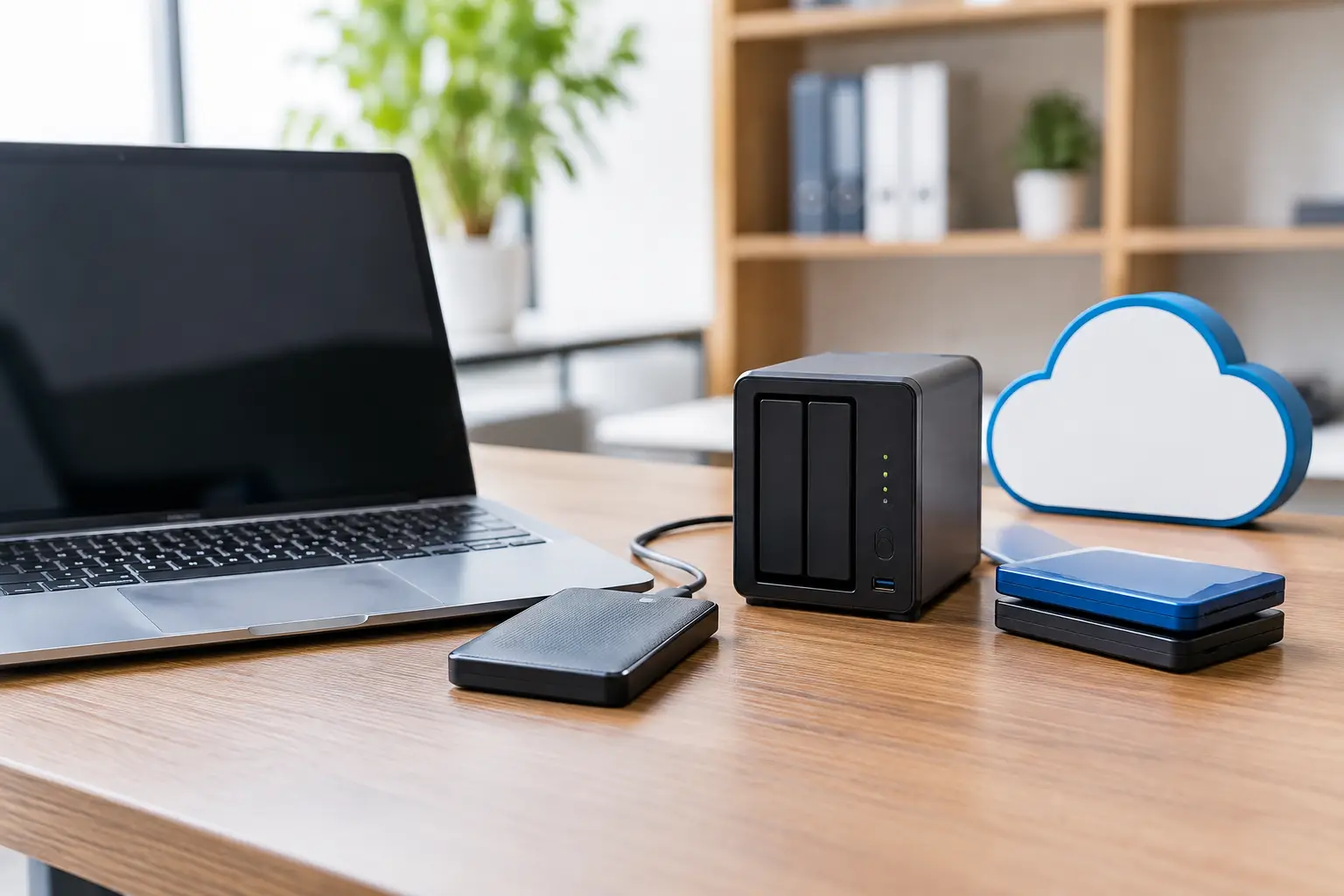
For most people, a current Time Machine backup on an external drive is the sensible starting point. Leave the drive connected until the backup has completed, then check the date and time of the most recent backup. If you use cloud storage such as iCloud Drive, OneDrive, Dropbox or Google Drive, make sure all files have finished syncing before you begin. A cloud icon beside a file can indicate that it is stored online rather than fully downloaded to the Mac.
Small businesses should take extra care here. Check where accounts software, customer records, project folders and email archives live. A folder on the Desktop may look ordinary, but it could contain the only copy of a job file or a year of invoices. If several people use shared drives, agree a quiet time for the move so that nobody is editing important documents while data is being copied.
How to Migrate Mac Data Using Migration Assistant
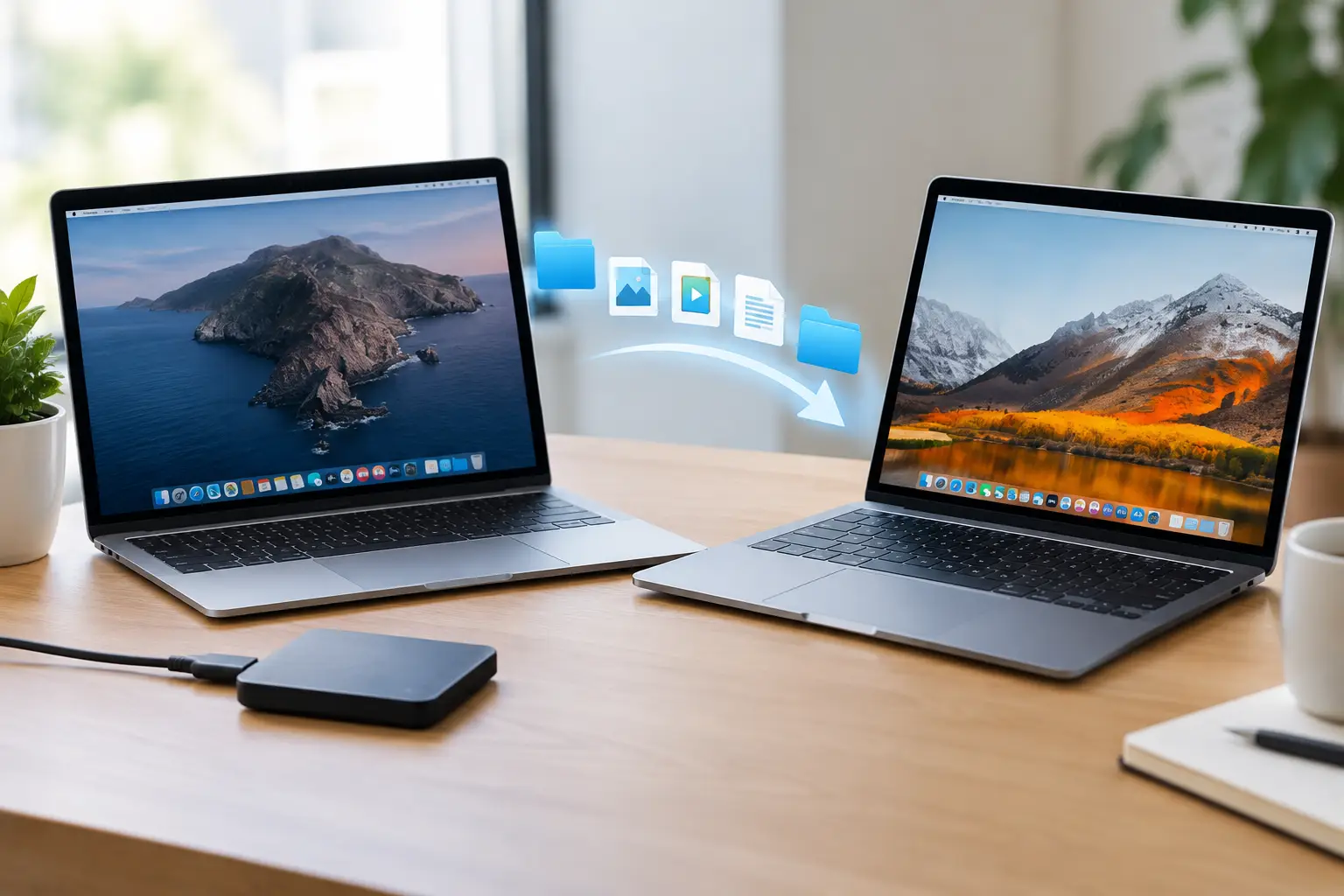
Migration Assistant is Apple’s built-in tool for moving your information from one Mac to another, from a Time Machine backup, or from a startup disk. It is usually the best choice when you want the new Mac to resemble the old one as closely as possible.
On a brand-new Mac, you will be offered the option during setup. If the Mac has already been set up, open Migration Assistant from the Applications folder, then Utilities. You will need an administrator password on the old Mac and enough storage space on the new one.
You can transfer directly from Mac to Mac over Wi-Fi, but a wired connection is normally faster and less likely to be interrupted, particularly if you have a large photo library or years of files. Depending on the Mac models involved, this may mean using a suitable Thunderbolt, USB-C or Ethernet connection. If you are unsure which cable or adaptor is appropriate, do not guess. The wrong lead may work only as a charging cable, or not at all.
Migration Assistant lets you choose what to bring over. In most home moves, transfer the user account, applications, other files and computer settings. For a business Mac, it may be better to pause and consider whether every old application and setting deserves to come across. An older machine can carry years of unused software, outdated printer drivers and login items that slow down startup.
The transfer can take anything from under an hour to overnight. The estimate shown at the start often changes as the Macs assess the data. Keep both machines powered, prevent them from sleeping, and avoid using them until the process has finished.
Moving from a Time Machine backup
If the old Mac is unavailable, unreliable, or already wiped, you can migrate from a Time Machine backup instead. Connect the backup drive to the new Mac and select the option to transfer from a Mac, Time Machine backup or startup disk.
This is also a useful route when you want to set up the new Mac at your own pace. You can make one final backup of the old computer, put it aside, then complete the move without needing both Macs open beside each other. It is slower than some direct cable transfers, but it provides a valuable safety net because the original backup remains intact.
Choose the Method That Fits Your Situation
There is no single right answer for every move. Direct Mac-to-Mac transfer is convenient when both devices are healthy and available. A Time Machine migration is often safer when the old Mac has started crashing, has a failing screen, or needs to be returned or sold quickly.
iCloud is helpful, but it is not a full migration plan on its own. It can restore contacts, calendars, notes, Safari information, passwords and files stored in iCloud Drive once you sign in. However, it will not necessarily bring across locally stored folders, every application, old email data or the settings that make the Mac feel familiar. Photos may also take time to download again, particularly with a large library and a modest broadband connection.
A clean start has advantages too. If your old Mac has been sluggish or cluttered, manually moving only the files you need can make the new one feel tidier. The trade-off is time. You must reinstall applications, sign back into services and carefully check that nothing was left behind. This approach is often worthwhile for a Mac that has served a household or business for many years.
Check These Things Before Wiping the Old Mac
Do not erase, sell or give away the old Mac as soon as the new one turns on. Use the new machine for a few days first, and carry out a proper check rather than relying on a quick glance at the Desktop.
Open your Documents, Desktop, Downloads and Pictures folders. Check that recent photos are present, and open a few older images as well. Make sure your email accounts send and receive messages, especially if you use a business address with Microsoft 365 or another provider. Open essential applications and confirm that you can sign in or reactivate them.
Pay particular attention to passwords, browser bookmarks and financial software. Some apps need you to deauthorise the old Mac or enter a licence key on the new one. Printers, scanners, specialist label printers and older business equipment may require updated software before they work correctly with a newer version of macOS.
If you use Apple Mail with messages stored locally, check old folders and archives rather than just the Inbox. Likewise, if your photo library was kept on an external drive, connect it and confirm Photos can find the correct library. These are common areas where a move can look complete until you need something from several years ago.
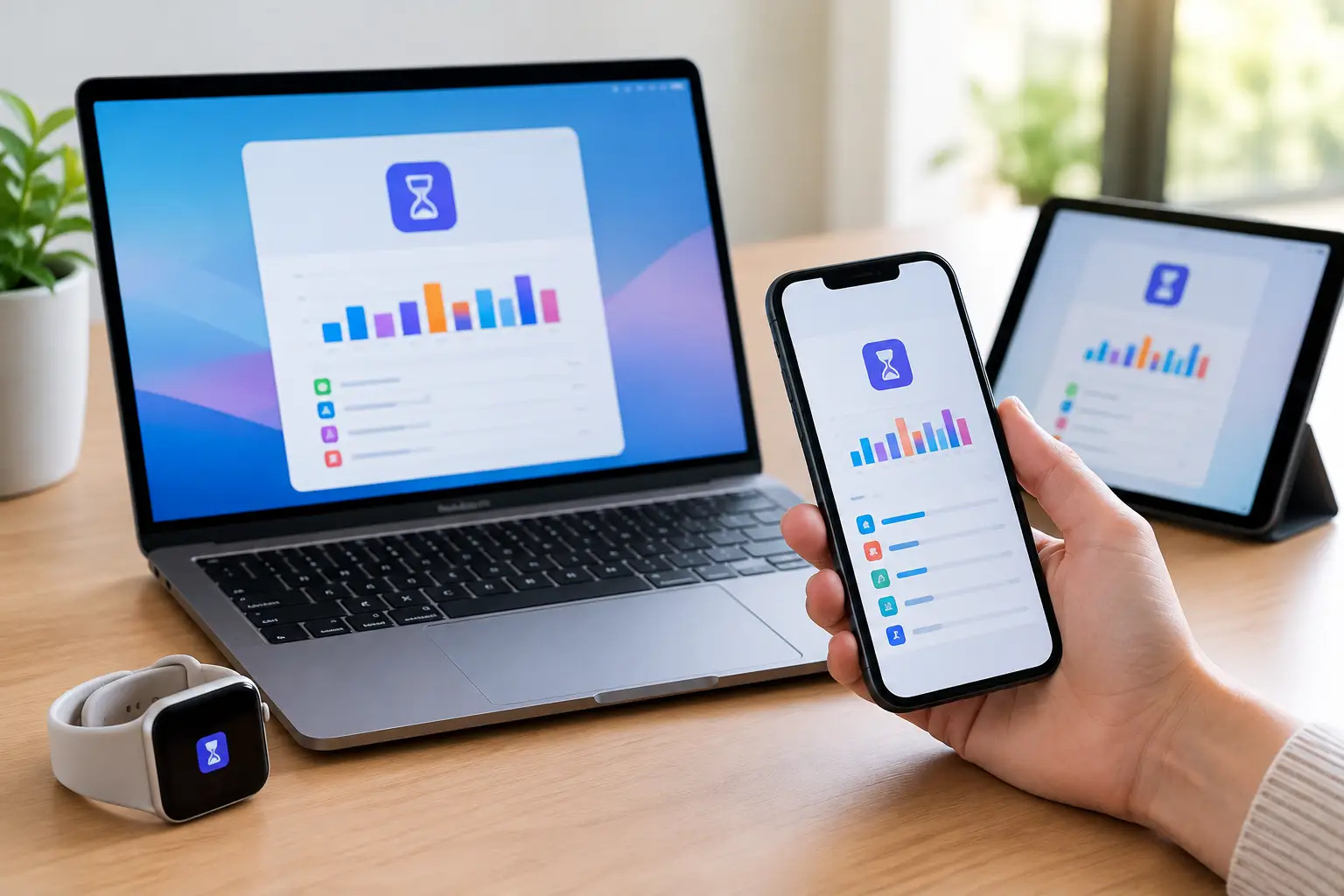
For a family Mac, check that each person’s account has transferred correctly. Children’s Screen Time settings, separate photo libraries and saved schoolwork can easily be overlooked when one person handles the upgrade. For a small firm, make sure shared folders, email signatures, accounting files and printer access work for the people who actually rely on them.
Common Problems During a Mac Migration
A lack of storage is one of the most frequent problems. Your new Mac may have less available space than the old one, especially if the old machine contains large video files, duplicate downloads or old device backups. Check storage before starting and decide what can be archived to an external drive rather than copied across.
Another issue is incompatible software. A new Apple silicon Mac may not run very old applications, particularly 32-bit software. Migration Assistant can copy an app, but it cannot make unsupported software compatible. Check critical programs before committing to the move, especially business databases, older Adobe tools and specialist industry software.
Slow Wi-Fi is also a practical concern. A wireless transfer may appear to have stopped when it is simply working through thousands of small files. If the connection drops repeatedly, cancel carefully, make a fresh backup, and use a cable or Time Machine drive instead of restarting the same unreliable process.
When Hands-On Help Makes Sense
For a straightforward home setup, Migration Assistant is usually manageable with a little patience. But it is sensible to ask for help if the old Mac is faulty, the data is particularly valuable, you have multiple user accounts, or you need a business machine working again quickly.
North Dorset Mac Man can help with a careful on-site Mac migration, including backups, transfer, email setup, printers, security checks and the less obvious details that make a new computer ready for everyday use. It is especially useful when a home office or local business cannot risk losing access to files halfway through the working day.
Keep the old Mac and its backup until you have used the new one with confidence. That small bit of patience is often what turns a stressful computer changeover into a genuinely fresh start.