A missed order, an unanswered customer enquiry or a supplier chasing an invoice can all stem from one thing: an email account that has stopped working during a changeover. Business email migration is not simply a matter of copying old messages to a new inbox. Done properly, it protects your correspondence, contacts, calendars and day-to-day access while your business keeps trading.
For a sole trader or small local team, email is often the filing cabinet, diary and front door of the business all at once. That is why a planned move matters far more than choosing the newest platform or the cheapest subscription.
What business email migration actually involves
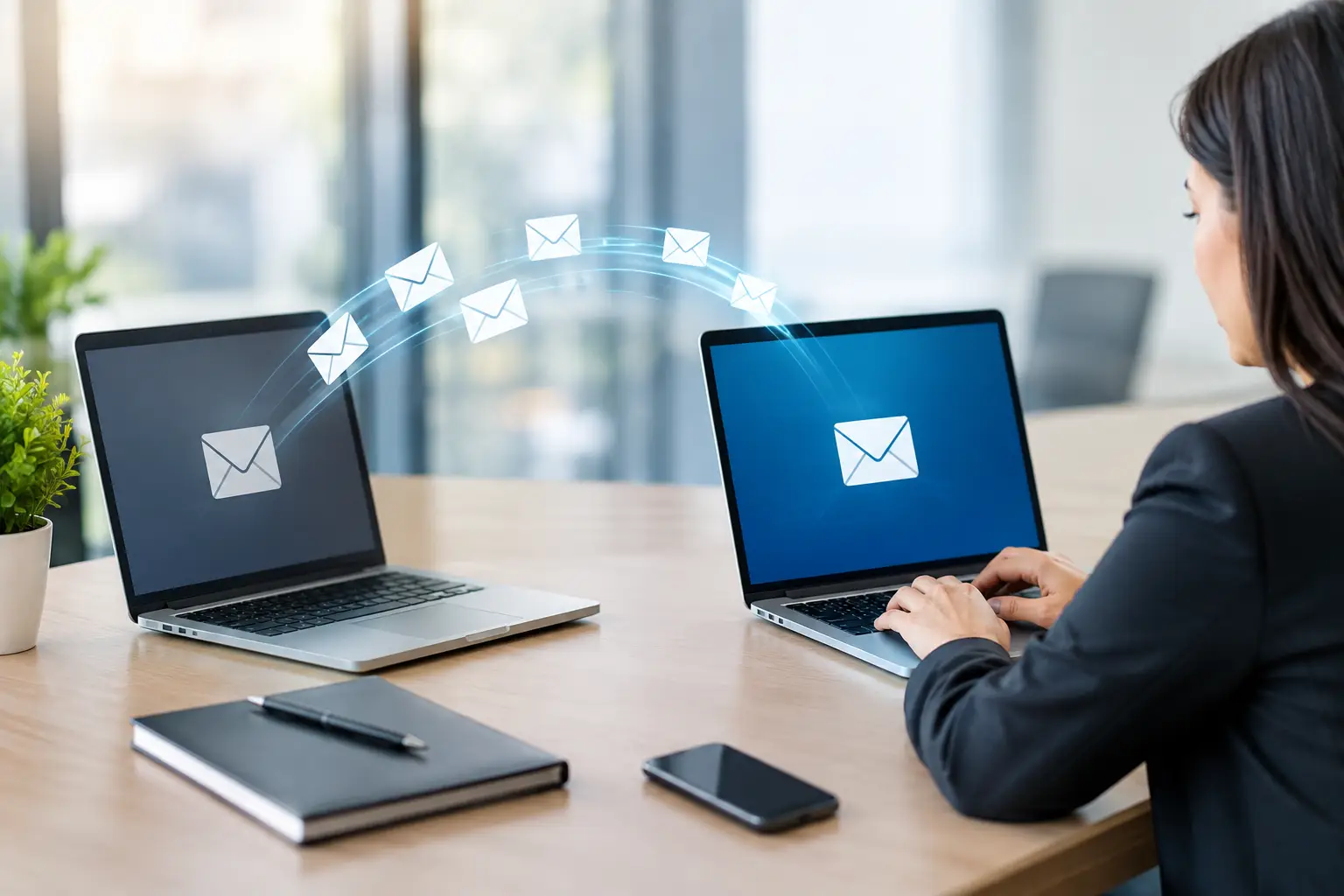
A business email migration is the process of moving email from one provider or system to another. You may be leaving an old hosting company, moving from a basic mailbox to Microsoft 365 or Google Workspace, changing a domain name, or bringing several separate accounts under one managed setup.
The visible part is simple: staff begin using a new mailbox. Behind the scenes, however, there may be years of folders, sent items, customer addresses, shared calendars and messages stored on Macs, iPhones and iPads. The work also includes changing the technical records that tell other mail systems where to deliver messages for your domain.
Those records are easy to overlook because they are not visible in Apple Mail or Outlook. If they are entered incorrectly, email may fail to arrive, be rejected as suspicious, or continue going to the old provider. This is where a careful, hands-on approach saves a great deal of frustration.
Why small businesses get caught out
The most common problem is assuming that the old email will remain available forever. Many providers close the old mailbox once a contract ends, and some only retain data for a short period. If messages have not been copied correctly, important records can disappear when they are needed most.
Another issue is that email rarely lives in one place. A director may use Apple Mail on an iMac, Outlook on a work laptop and the Mail app on an iPhone. A member of staff may have saved contacts locally rather than in the company address book. Calendars may be shared through iCloud, Google or an older Exchange account. Moving the mailbox alone does not automatically put every device and every shared item right.
There is also the question of sending reputation. Modern email providers check whether a message is genuinely authorised to come from your domain. Settings commonly known as SPF, DKIM and DMARC help with this. They sound technical, but their purpose is straightforward: they reduce spoofing and give your genuine messages a better chance of reaching the recipient’s inbox rather than their junk folder.
Start with a proper email audit
Before changing anything, take stock of what you have. This does not need to be a lengthy boardroom exercise, but it should be accurate. Identify every active email address, including info@, accounts@ and older addresses that may still receive customer messages.
Check who uses each account and on which devices. Include home computers if staff work remotely, as well as phones and tablets. It is also worth noting shared mailboxes, forwarding rules, mailing lists, aliases, website contact forms and any software that sends messages automatically, such as booking systems, scanners or accounting packages.
Next, establish what must move. Most businesses need their email history, contacts and calendars. Some need only the last few years immediately available, while others need a full archive for customer service, accounting or compliance reasons. The right choice depends on the business. Copying every message since 2006 may be sensible for a small firm with manageable storage, but it can add time and cost with little benefit in other cases.
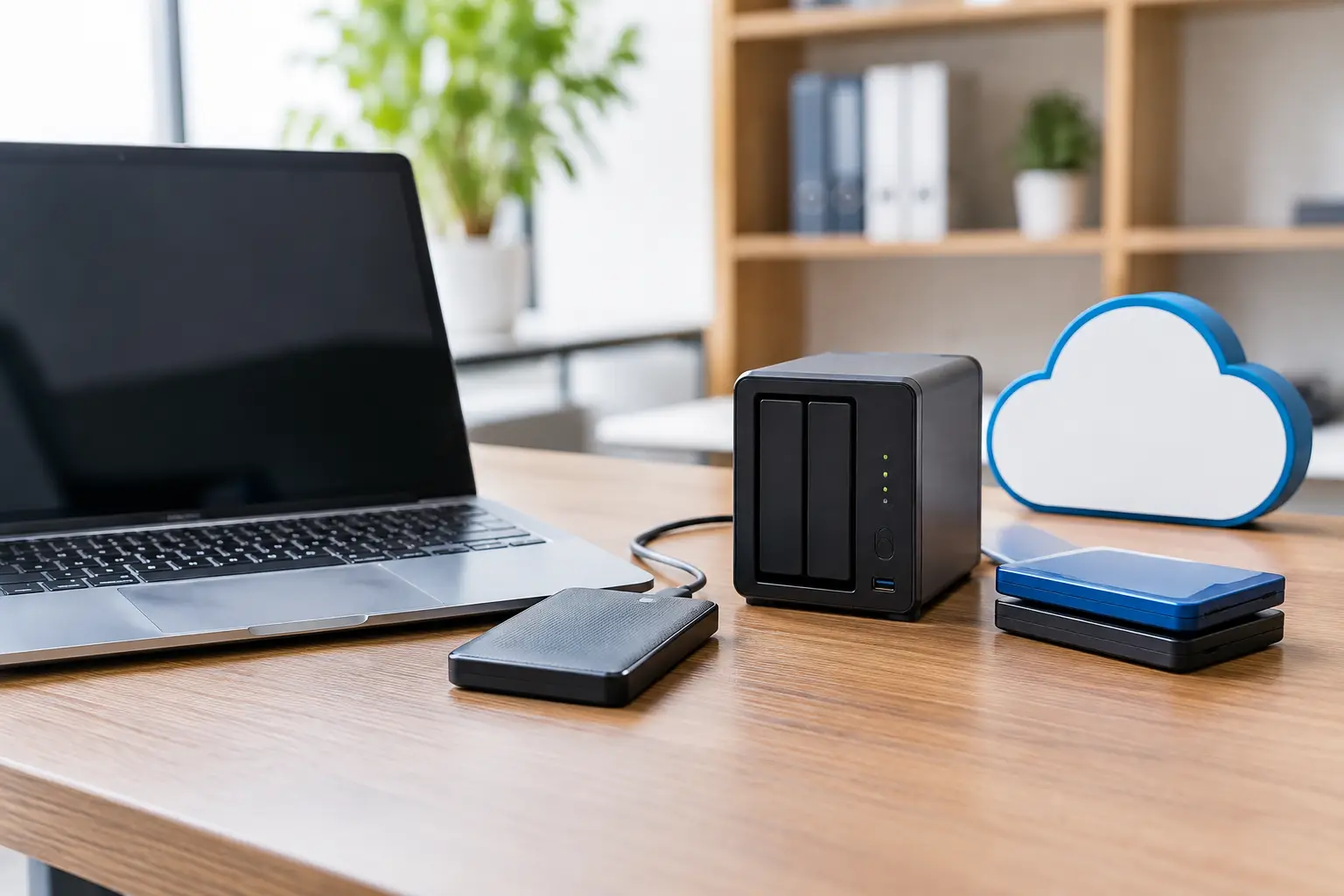
A backup should be made before the migration begins. A migration tool is useful, but it should not be treated as the only copy of valuable business correspondence. On a Mac, local mail archives can also need checking separately, particularly if older messages were stored under folders labelled “On My Mac”.
Choose the destination around how you work
Microsoft 365 and Google Workspace are common choices for small businesses because they provide professional email under your own domain, shared calendars and cloud storage. Both work well with Macs, iPhones and iPads when configured correctly. The better fit depends on how your team works rather than on a universal winner.
Microsoft 365 can be a natural choice for businesses already relying on Word, Excel, Outlook or Teams. Google Workspace may suit teams that prefer browser-based collaboration and already use Google Drive and Google Calendar. A reliable hosted email service may also be enough for a very small business with straightforward needs.
Do not choose solely on monthly price. Consider storage, shared mailbox requirements, security controls, ease of adding staff, support arrangements and whether your existing files and calendars will work comfortably with the new system. If a team is used to Apple Mail, there is no requirement to force everybody into a different application, provided the account is set up properly and supported.
Plan the move to protect working hours
A good migration normally starts with a test. Set up one account first, copy a sample of data and check that messages can be sent and received from a range of devices. Confirm that names, folders, attachments, calendar invitations and contact groups appear as expected.
The main move can then be scheduled for a quieter period. Even when the technical switch is quick, people need time to sign in again, approve security prompts and learn any small changes to their routine. For some firms, that means an evening or weekend. For others, a staged move by department is safer.
There can be a short period while internet records update across different providers. Keeping the old service active during this overlap gives you a safety net and allows a final copy of newly arrived messages. It is usually better to run both systems briefly than to cancel the old one the moment the new one appears to work.
Staff communication matters too. Give everyone clear instructions on when the change happens, what password or sign-in method they will use, and who to contact if their phone or Mac will not connect. A short, practical guide is more useful than a long technical document nobody reads.
Set up security before problems arrive
Email account takeovers are a serious risk for small organisations. Criminals often target smaller firms because one compromised mailbox can be used to send convincing payment-change requests or false invoices.
Use unique, strong passwords and turn on multi-factor authentication for every account. This usually means approving a sign-in on a phone or entering a code, so a stolen password alone is not enough to access the mailbox. Make sure more than one trusted person can administer the system, but avoid sharing a single administrator password between the whole team.
Review forwarding rules after the move. Fraudsters sometimes create hidden forwarding rules so they can watch correspondence without being noticed. It is also wise to remove former staff promptly, check shared mailbox permissions and make sure recovery phone numbers and alternative email addresses belong to the business, not solely to an individual employee.
Finally, test the practical details. Send messages to and from external addresses, try replies with attachments, create a calendar appointment, check a website enquiry form and confirm that invoices or booking emails are still being delivered. A technically completed migration is not the same as a business-ready one.
When local help makes the difference
Email moves are manageable, but they are rarely convenient when you are also serving customers and running a business. A local technician can assess the existing setup, protect the data, manage the domain settings and configure the new accounts on the Macs, iPhones and iPads people actually use. North Dorset Mac Man can also provide patient, one-to-one help for staff who need reassurance after the change rather than being left with a support article and a login screen.
The aim is not to make email more complicated. It is to leave you with a system that is easier to manage, safer for the business and dependable when a customer needs an answer. Plan the move before the old service becomes urgent, and your inbox can keep doing its quiet but essential job.