
That sinking feeling when a folder of family photos disappears, a MacBook will not start, or an important business document refuses to open is very real. Data recovery is often possible, but the first few minutes can make a substantial difference to the outcome. The most useful rule is also the simplest: stop using the affected device until you know what has happened.
A Mac that is still running may keep writing temporary files to its storage. If a document has been deleted, those new writes can overwrite the very space where it once lived. If a drive is making unusual noises or repeatedly disconnecting, continued use can turn a recoverable fault into a more serious one.
Data recovery starts with stopping
Do not reinstall macOS, run a cleaner, or keep restarting a Mac that is behaving strangely in the hope it will sort itself out. Avoid saving anything new to the same internal drive, external drive or USB stick where the files were lost. For a business, it is particularly tempting to carry on until the end of the day. In practice, pausing early is usually the safer and less expensive decision.
There are four sensible first actions:
- Make a note of what has gone missing, where it was stored and when it was last seen.
- Disconnect a failing external drive safely if the Mac allows it, then leave it powered off.
- Check whether the files exist elsewhere before attempting any repair.
- Keep the Mac, its charger and any affected drives together, especially if passwords or recovery keys may be needed.
The right next step depends on the cause. A file moved to the Bin is a very different situation from a failed solid-state drive, a damaged external hard drive or an iCloud syncing problem.
Check the straightforward places first
A surprising number of apparent losses are really changes in location, account or synchronisation. Start with the Bin, then look in the recent files list for the relevant application. Spotlight can help find a document that has been renamed or moved into an unfamiliar folder.
If you use iCloud Drive, Photos or Dropbox, check that you are signed in with the correct account and that the Mac has an internet connection. A file may still be in the cloud but not yet downloaded to that particular Mac. Conversely, a deletion can synchronise quickly across devices, so do not assume that an iPad or iPhone is a safe copy without checking it first.
Time Machine is often the quickest answer. Connect the backup drive, open the folder where the item used to be, and browse back to a date before it disappeared. Restoring one file is usually simple. Restoring a whole Mac after a serious failure needs more care, particularly where business email, accounting software or newer versions of documents are involved.
It is worth checking any other backup arrangement too. Some people have an older clone drive in a drawer, copies on a work server, or a version history within Microsoft 365 or Google Workspace. Those sources can be cleaner and safer than attempting recovery from a failing disk.
When the Mac will not start
A Mac that will not boot does not automatically mean the data has gone. The problem could be the operating system, the display, the battery, an update that did not complete properly, or the storage itself. The symptoms matter.
A flashing folder with a question mark generally means the Mac cannot find a startup disk. A prohibitory symbol can point to an incompatible or damaged system. Repeated clicking from an older mechanical hard drive, however, is a warning sign to stop immediately. Do not run Disk Utility First Aid repeatedly on a drive that clicks, grinds or disappears from view.
Modern Macs introduce an extra consideration. Many newer MacBook, iMac and Mac mini models use soldered internal SSD storage alongside hardware-based encryption. Apple silicon Macs and many Intel Macs with a T2 security chip are excellent for security, but recovery can be more dependent on the Mac itself, its user account password and the condition of the logic board. There is no removable hard drive to place in another computer as there was with many older machines.
This does not make recovery impossible, but it does mean that a generic repair approach can be risky. A technician needs to establish whether the fault is software, storage, power or hardware before choosing a route forward.
Why DIY recovery software is not always the answer
Recovery software can be helpful after an accidental deletion from a healthy external drive, provided it is installed and run from a different disk. It can scan for traces of lost files and save anything found to another location.
It is less suitable when the storage is physically failing, the drive keeps disconnecting, or the Mac cannot reliably read the disk. Scanning puts the drive under sustained work. On a weak drive, that can be the point at which it fails altogether. The software may also find files with meaningless names, incomplete contents or missing folder structures. Results vary widely.
Be especially cautious of any tool that urges you to pay before showing a clear preview of what can be recovered. Good recovery decisions are based on the type of fault and the value of the data, not on panic.
A sensible approach for homes and small businesses
For a household, the priority might be irreplaceable photos, videos and personal documents. For a local business, it might be customer records, invoices, a website backup, design work or years of emails. In both cases, decide what is genuinely essential before anyone starts changing settings or copying data around.
A careful technician will normally assess the device, confirm what storage is visible, and look for the least invasive way to retrieve the important information. That may mean restoring from Time Machine, copying accessible files to a new drive, repairing a damaged macOS installation without erasing data, or arranging specialist laboratory recovery for a physically damaged drive.
There is a trade-off here. Specialist clean-room recovery can be costly, and no reputable provider should promise success before examining the drive. But when the only copy of vital business information or family memories is involved, it can be worthwhile. Where the data is already available in a backup, replacing the faulty drive and restoring properly is often the more sensible route.
Privacy matters as well. Your Mac may contain passwords, financial records, client information and personal photographs. Use someone who will explain what they need access to, handle your data discreetly and return it on a suitable encrypted drive where appropriate. For business data, it is sensible to consider your own confidentiality and data-protection responsibilities before handing a device over.
Prevent the next data loss
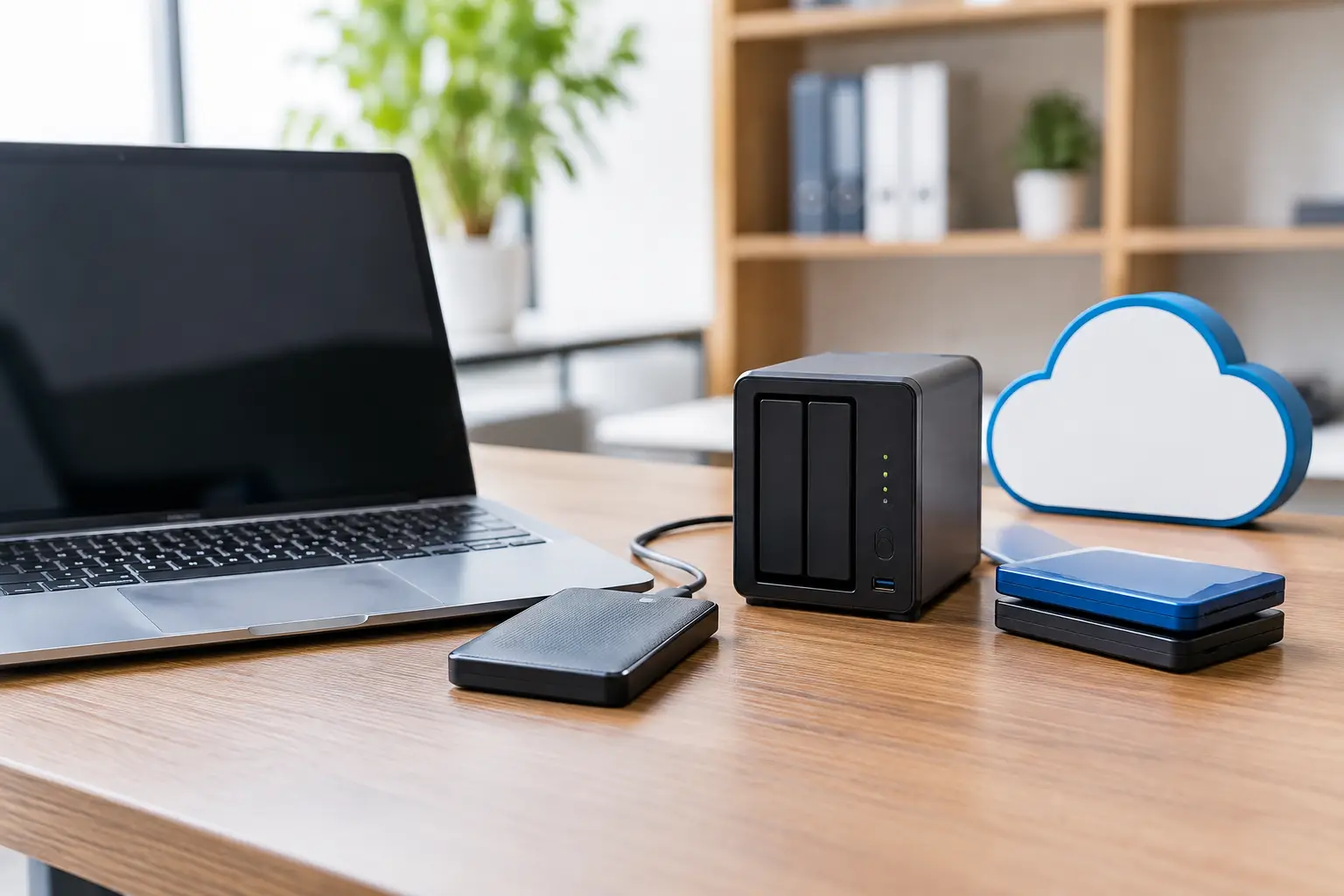
The most dependable protection is not one backup but more than one copy in different places. Time Machine is an excellent starting point for Mac users because it keeps older versions of files and can restore a full Mac. Add a second copy away from the premises, such as a trusted cloud backup service or an encrypted drive stored elsewhere.
Backups only count if they work. Check occasionally that you can see recent backup dates and open a file from the backup. Make sure every person in the household or workplace knows where important files belong rather than leaving them scattered across Downloads, desktops and USB sticks.
For small businesses, include email, cloud storage, website files and specialist software data in the plan. A cloud service may provide good availability, but that does not always mean it keeps the historical copies you need after an accidental deletion or account problem.
North Dorset Mac Man can help assess a Mac or drive calmly, recover accessible data where possible, and put a practical backup routine in place afterwards. If your files have just vanished or a drive has begun to fail, resist the urge to keep trying fixes. Switch off, keep the device safe, and get advice before the next click makes the difference.