
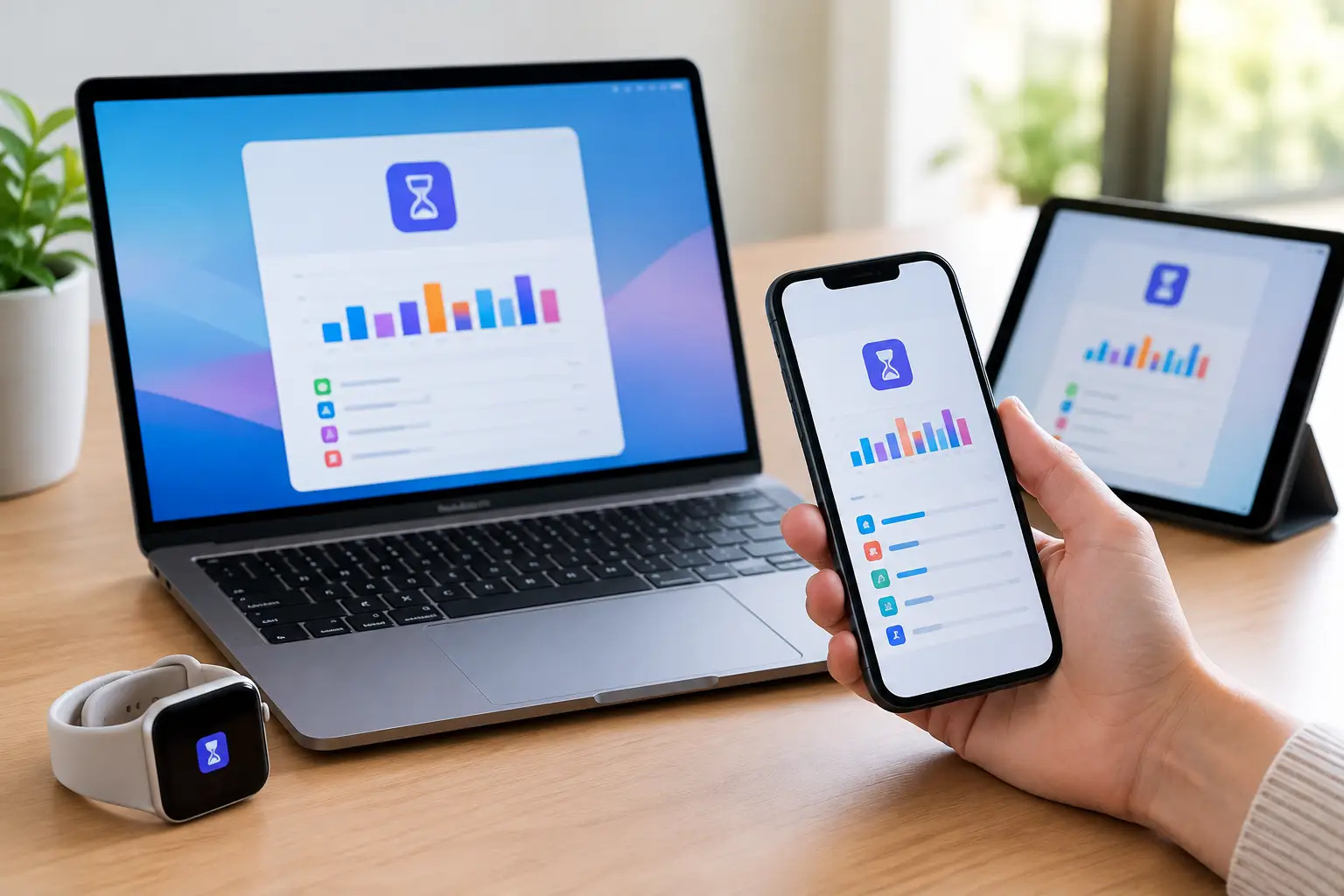
Knowing how to set Screen Time can make a real difference in a busy household. It is not simply about restricting children’s devices. Used well, it helps families understand where time is going, protect sleep and school time, and make iPhones, iPads and Macs feel less distracting without making them difficult to use.
Apple’s Screen Time settings are flexible, which is useful but can also make them feel a little daunting at first. The best approach is to start with one or two sensible rules, then adjust them once you can see how they work in everyday life.
What Screen Time can do
Screen Time records time spent in apps and websites, shows how often a device is picked up, and lets you set limits for particular activities. You can use it on your own iPhone, iPad or Mac, or manage a child’s device through Family Sharing.
The main controls are straightforward. Downtime creates a period when only chosen apps and phone calls are available. App Limits restrict categories such as games or social media, or individual apps. Always Allowed lets you keep essential apps available even during Downtime. Content & Privacy Restrictions gives parents control over purchases, explicit content, websites and changes to important settings.
There is a trade-off with every restriction. A strict limit may stop endless scrolling, but it can also block a child from a homework app, a family group chat or music on the way home. Screen Time works best as a helpful framework, not a punishment applied without explanation.
How to set Screen Time on an iPhone or iPad
On an iPhone or iPad, open Settings and choose Screen Time. On newer versions of iOS and iPadOS, you may first see App & Website Activity. Select it and choose Turn On App & Website Activity. On older software, the wording may simply be Turn On Screen Time.
If this is your own device, select the option for yourself. If you are setting up a child’s device directly, choose the child option when offered. Apple will then guide you through Downtime, app limits and content restrictions. You do not need to accept every suggested setting immediately. It is often better to complete the basic setup, use the device normally for a few days and then review the report together.
To set Downtime, go to Settings > Screen Time > Downtime. Turn it on and choose either the same time every day or a different schedule for each day. For example, a school-night schedule from 8.30 pm to 7.00 am can reduce late-night notifications while leaving weekends more flexible.
For app limits, choose App Limits, then Add Limit. You can select a whole category, such as Games, or choose particular apps. A limit of one hour for games may suit one family; another may prefer a shorter weekday limit with more time at weekends. There is no universal “right” number. The aim is a rule your family can understand and follow.
Set a Screen Time passcode before limits are tested
A Screen Time passcode prevents a child from changing limits or extending them without permission. In Screen Time settings, select Lock Screen Time Settings or Use Screen Time Passcode, depending on the software version. Use a passcode that is different from the device unlock code.
This small detail matters. If a child knows the same code used to unlock the phone or iPad, they may be able to change the settings just as easily as they can open the device.
When setting the passcode, Apple may ask for the Apple Account details used to recover it if it is forgotten. Use an account you can access reliably. Forgotten Screen Time passcodes are a common reason people end up locked out of their own settings, especially after an old family email address has been retired.
Manage a child’s Screen Time with Family Sharing
For most families, Family Sharing is the easier way to manage Screen Time. It lets a parent view reports and change settings from their own iPhone, iPad or Mac, rather than borrowing the child’s device each time.
First, make sure each family member has their own Apple Account. Sharing one account between parent and child causes problems with messages, photos, contacts, purchases and Screen Time reporting. Once Family Sharing is set up, go to Settings, tap your name, then choose Family. Select your child’s name and open Screen Time.
You can then set Downtime, app limits, communication limits and content restrictions remotely. A child can request more time when a limit is reached, and you can approve or decline the request on your own device. This is generally less confrontational than having to take a device away, particularly for older children who are beginning to manage their own routines.
Do check that the child’s date of birth is correct on their Apple Account. Age-based content controls depend on it. If the account has been set up with the wrong age, some restrictions may not behave as expected.
Content restrictions worth checking
Screen Time is not only about hours spent on a screen. Under Content & Privacy Restrictions, you can control app installations and deletions, in-app purchases, films, TV programmes, books, web content and Game Centre features.
For younger children, limiting adult websites and requiring permission to install apps can be sensible. For teenagers, a more balanced setup may be better: keep purchase approval on, discuss privacy settings, and avoid restrictions so severe that they encourage workarounds or secrecy.
Communication Limits are useful when you want to control who a child can contact during Screen Time and Downtime. Be careful here if they need to contact grandparents, a separated parent, school clubs or trusted carers. Add essential contacts before relying on the setting.
How to set Screen Time on a Mac
On a Mac, choose the Apple menu, open System Settings, then select Screen Time. If there are several user accounts on the Mac, make sure you are adjusting the correct person’s profile. You can turn on App & Website Activity, set Downtime and App Limits, and manage content restrictions from this area.
For a shared family Mac, separate user accounts are strongly recommended. Each person should sign in with their own account rather than everyone using one desktop and one password. That gives more accurate Screen Time reports and prevents a child’s limits from affecting a parent’s work or online banking.
If you use the same Apple Account across an iPhone, iPad and Mac, look for Share Across Devices in Screen Time. With this enabled, usage can be combined across compatible devices. This gives a more realistic picture of overall use, but it can make a limit feel stricter than expected. Thirty minutes of a game on an iPad and another thirty minutes on a Mac may count towards the same allowance.
When Screen Time does not appear to work
The usual causes are simple: the device has not been updated, the child is not properly included in Family Sharing, the wrong Apple Account is signed in, or Share Across Devices is producing unexpected results. A restart and a check of each device’s Apple Account can resolve many problems.
Also remember that Screen Time is not a complete internet safety system. It cannot replace conversations about online behaviour, passwords, scams, privacy and what to do if something upsetting appears on screen. It is one useful layer of support, alongside clear family expectations and a willingness to listen.
Try not to judge the reports too quickly. An unusually high day may reflect homework, a long video call with family, travel entertainment or a new creative hobby. Look for patterns over a week or two rather than treating every extra minute as a problem.
If Screen Time settings are becoming tangled across several Apple devices, accounts or family members, patient hands-on help can save a great deal of frustration. North Dorset Mac Man can help Dorset households set things up clearly, explain what each control does and leave you confident making changes later. The most useful Screen Time plan is the one your family can live with, not the strictest one on the screen.