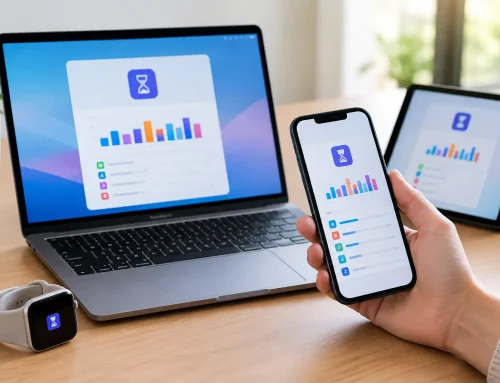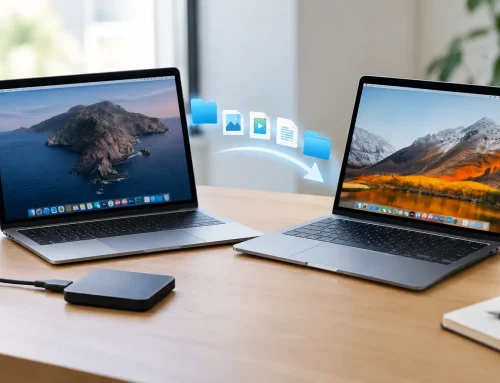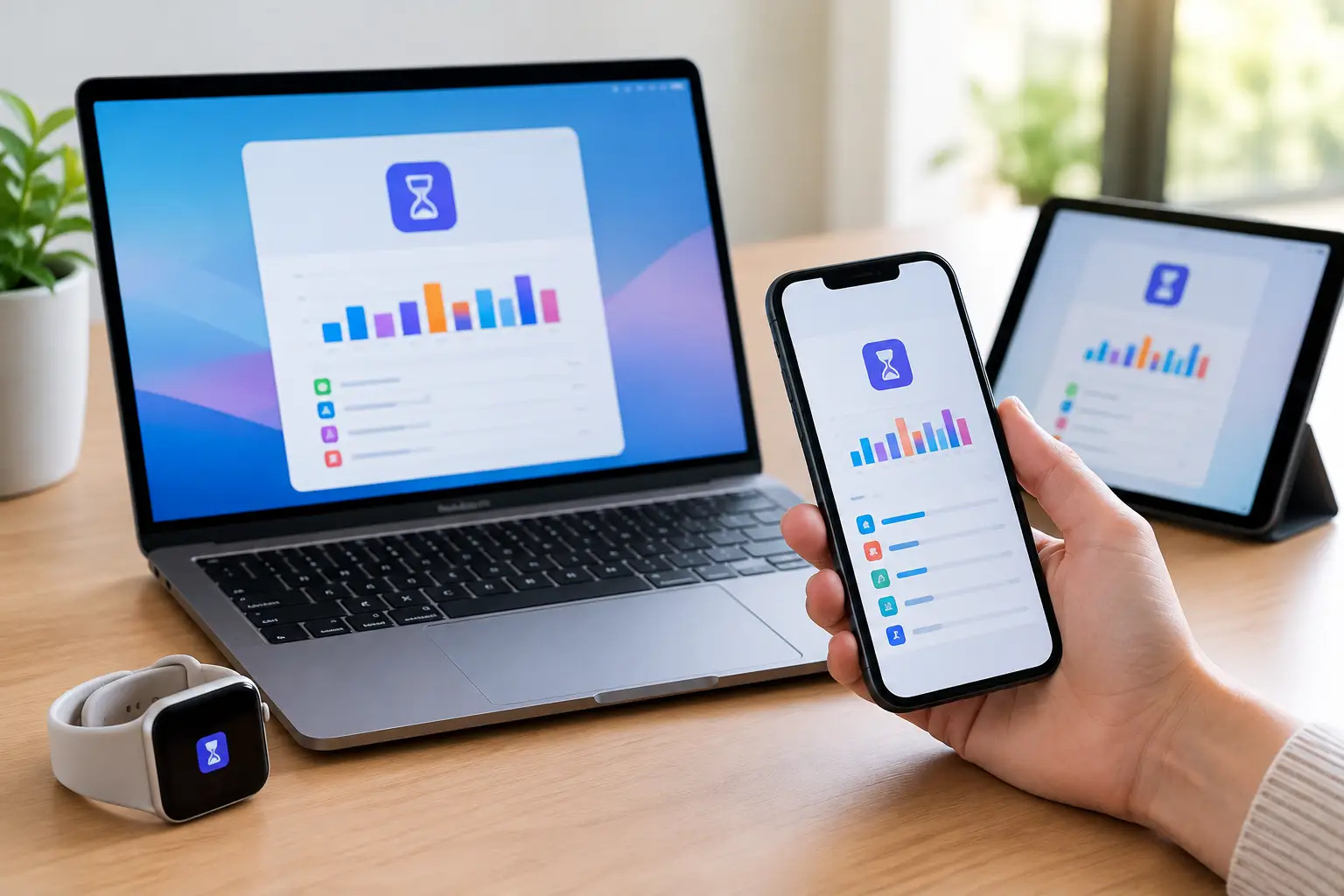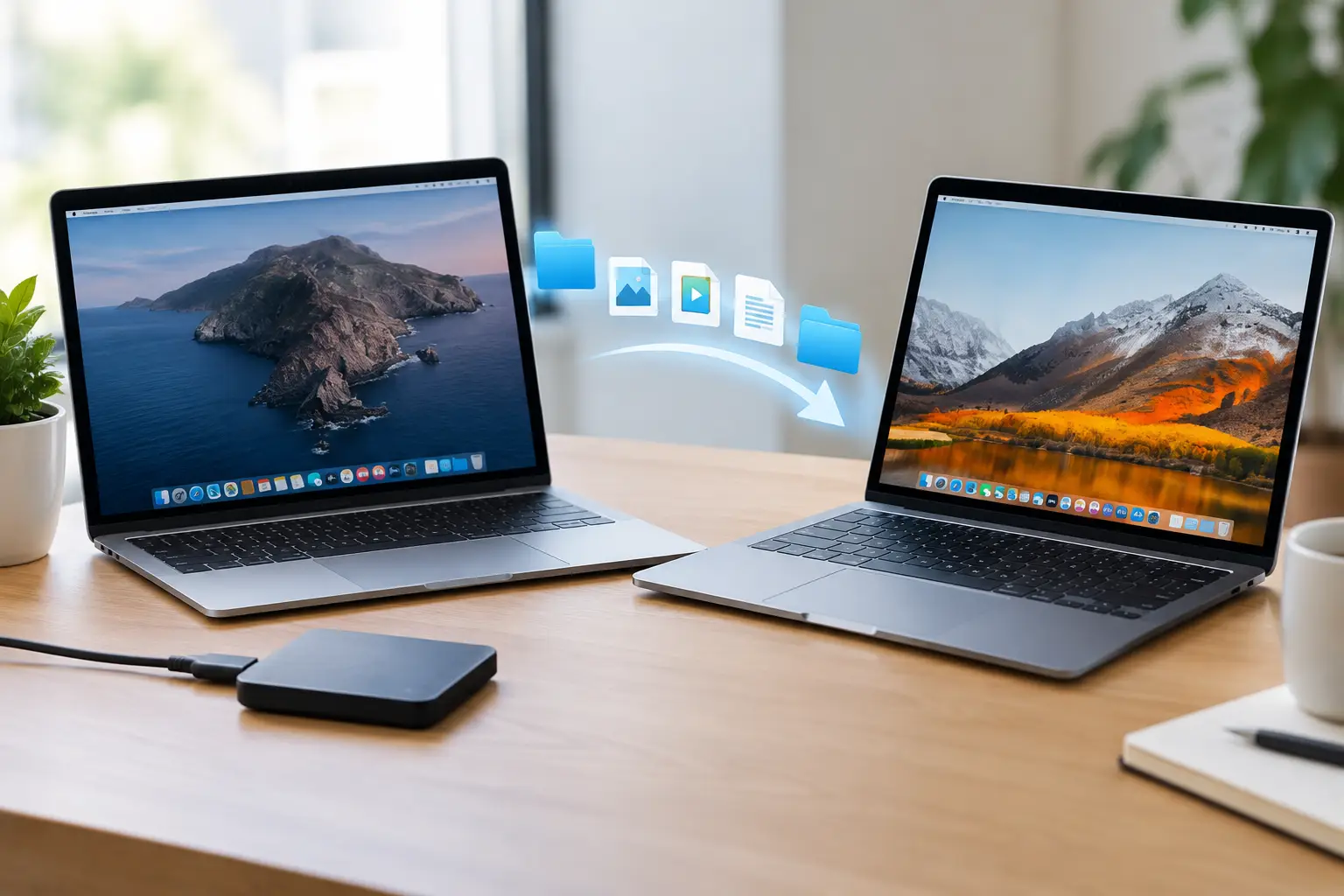

A photo taken on your iPhone should appear on your iPad without you having to think about it. When Apple devices not syncing leaves documents missing, contacts different or messages only appearing on one screen, it can quickly become more than a minor annoyance. For a household sharing several devices, or a Dorset business relying on a Mac and iPhone every day, it can mean duplicated work, missed appointments and understandable worry about where information has gone.
The reassuring part is that syncing problems are usually caused by a setting, connection or account mismatch rather than lost data. The key is to check the right thing first, rather than repeatedly restarting every device and hoping for the best.
Why Apple devices stop syncing
Apple uses several services to keep information up to date. iCloud can synchronise photos, contacts, calendars, notes, files, passwords and more. Messages has its own iCloud setting. Mail may come from iCloud, Microsoft 365, Google or another provider. AirDrop, meanwhile, transfers files directly between nearby devices and does not work like iCloud at all.
That distinction matters. If your calendar is not updating but your photos are, iCloud itself may be working perfectly – the Calendar setting could simply be off on one device. If your work email is missing from an iPhone but present on a Mac, the issue may be with the Microsoft or Google account rather than Apple.
A delay is also not always a fault. A large photo library can take time to upload, especially after a new phone has been set up or restored. iPhones and iPads often pause bigger iCloud jobs when on mobile data, low battery or poor Wi-Fi. A Mac may wait until it has a stable connection before processing a large number of changes.
Start with the simple checks
Before changing settings, make sure every affected device has a reliable internet connection. Open a web page or send a normal message on each device. Wi-Fi that appears connected but has no usable internet is a surprisingly common cause, particularly after a router change or broadband outage.
Next, check whether the devices are signed in to the same Apple Account. Apple now calls this an Apple Account, though many people will still know it as an Apple ID. On an iPhone or iPad, open Settings and tap your name at the top. On a Mac, go to Apple menu, System Settings, then your name. The email address should match exactly on all personal devices you expect to share data.
It is quite common for a family to have an older Apple Account still signed in on one iPad, perhaps one originally used by a parent or previous owner. That device will not automatically receive the current account’s iCloud information. Family Sharing is useful for purchases, subscriptions and shared storage, but it does not merge everyone’s private photos, messages, contacts or notes.
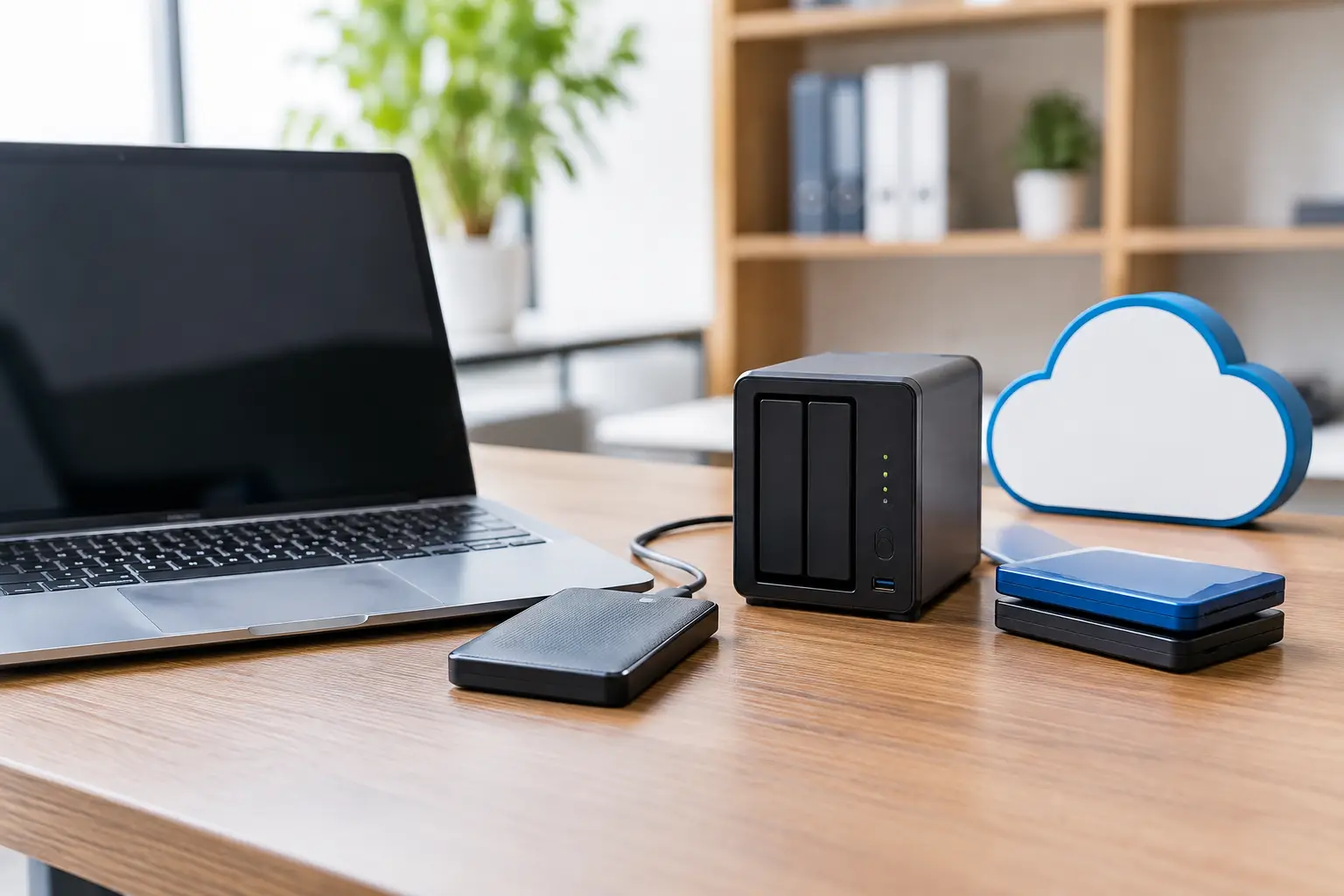
Also look at available storage. If iCloud storage is full, new photos, files and backups may stop uploading. If a device itself is nearly full, it may struggle to download changes. In Settings or System Settings, your Apple Account section shows iCloud storage and what is using it. Removing unwanted old backups or large files can help, but do not delete anything until you are sure it is safely stored elsewhere.
Apple devices not syncing? Check iCloud settings
Once the connection, account and storage look right, check the individual item that is missing. On iPhone and iPad, go to Settings, tap your name, then iCloud. On a Mac, use System Settings, your name and iCloud. You can see which apps and features are allowed to use iCloud.
Photos missing from another device
For photos, iCloud Photos needs to be turned on everywhere you want the library to appear. On an iPhone, this is found under Settings, your name, iCloud and Photos. On a Mac, open the Photos app, then its settings, and confirm iCloud Photos is enabled.
Look at the bottom of your library on the device where the photo was taken. You may see a message such as ‘Uploading’, ‘Waiting for Wi-Fi’ or ‘Low Power Mode’. Connect to Wi-Fi, plug the device into power and give it some time. A video filmed in high resolution can be several gigabytes, so immediate appearance on another device is not guaranteed.
If the photo was imported from a camera or saved into a folder rather than added to the Photos library, it will not automatically appear in iCloud Photos. In that case, placing it in iCloud Drive may be the better option.
Contacts, calendars and notes differ
A contact can be saved to iCloud, Gmail, Outlook, Microsoft Exchange or locally on a device. This is why a new phone number may appear on your Mac but not on an iPhone. Open the Contacts app and check the account groups or lists being shown. Then visit the relevant account settings to make sure Contacts is enabled.
The same principle applies to calendars and notes. A note saved ‘On My iPhone’ stays on that phone. A calendar created under a Google account will only synchronise where that Google account is added and calendar syncing is switched on. For people managing business and personal diaries, it is worth choosing a clear home for each calendar rather than allowing accounts to multiply unnoticed.
Messages are not matching
Messages can be slightly more confusing. For iMessages to appear across iPhone, iPad and Mac, each device must be signed into the same Apple Account for Messages, and Messages in iCloud should be enabled. On iPhone, check Settings, Apps, Messages and then the relevant iMessage options. On a Mac, open Messages and check its settings.
Text messages from a non-Apple phone number may need Text Message Forwarding set up through the iPhone. If one device can send but not receive, check the reachable phone numbers and email addresses listed in Messages settings. Do not remove or change these casually if you rely on a number for work.
Updates, passwords and security prompts
An outdated operating system can cause odd behaviour, particularly when one device has had a major update and another has not. Install available updates once you have a current backup and enough free storage. You do not always need the newest device to keep syncing, but very old software may no longer support every current iCloud feature properly.
Password changes can also interrupt syncing. If you recently changed your Apple Account password, one device may be waiting for you to enter the new one. Look for a notification in Settings or System Settings asking you to finish account setup. Two-factor authentication prompts need attention too, especially after a device has been repaired, erased or signed out.
For email, a password change at Microsoft 365, Google or another provider is often the real culprit. Re-entering the password may resolve the problem, but do not delete the account first if it contains mail held only on the device. A quick check with the account provider can prevent accidental loss of locally stored messages.
Avoid the heavy-handed fixes first
Signing out of iCloud, resetting network settings or erasing a device can solve certain faults, but they are not sensible first steps. Signing out may remove local copies while the device reconnects, and an incomplete backup makes that risk greater. Resetting network settings also removes saved Wi-Fi passwords, which can be inconvenient in a home or office with several networks.
A normal restart is safe and can clear a temporary software hold-up. After that, allow the device to reconnect to Wi-Fi and leave it for a while before deciding the fault remains. Repeatedly toggling settings on and off can create more confusion when a large sync is already underway.
When a syncing issue needs proper support
It is time to get help when iCloud shows warnings you do not understand, a device is asking for the password to somebody else’s account, photos appear to be missing, or business contacts and calendars are no longer dependable. These are situations where a quick guess can be costly.
North Dorset Mac Man can check the whole picture at your home or workplace: the Apple Account, iCloud settings, Wi-Fi, device storage, email accounts and backups. More importantly, the cause can be explained in plain English, so the same problem is less likely to catch you out again.
If a file, photograph or appointment matters, pause before deleting accounts or resetting devices. A calm check of where the information is stored is usually the safest route back to a properly connected Apple setup.