
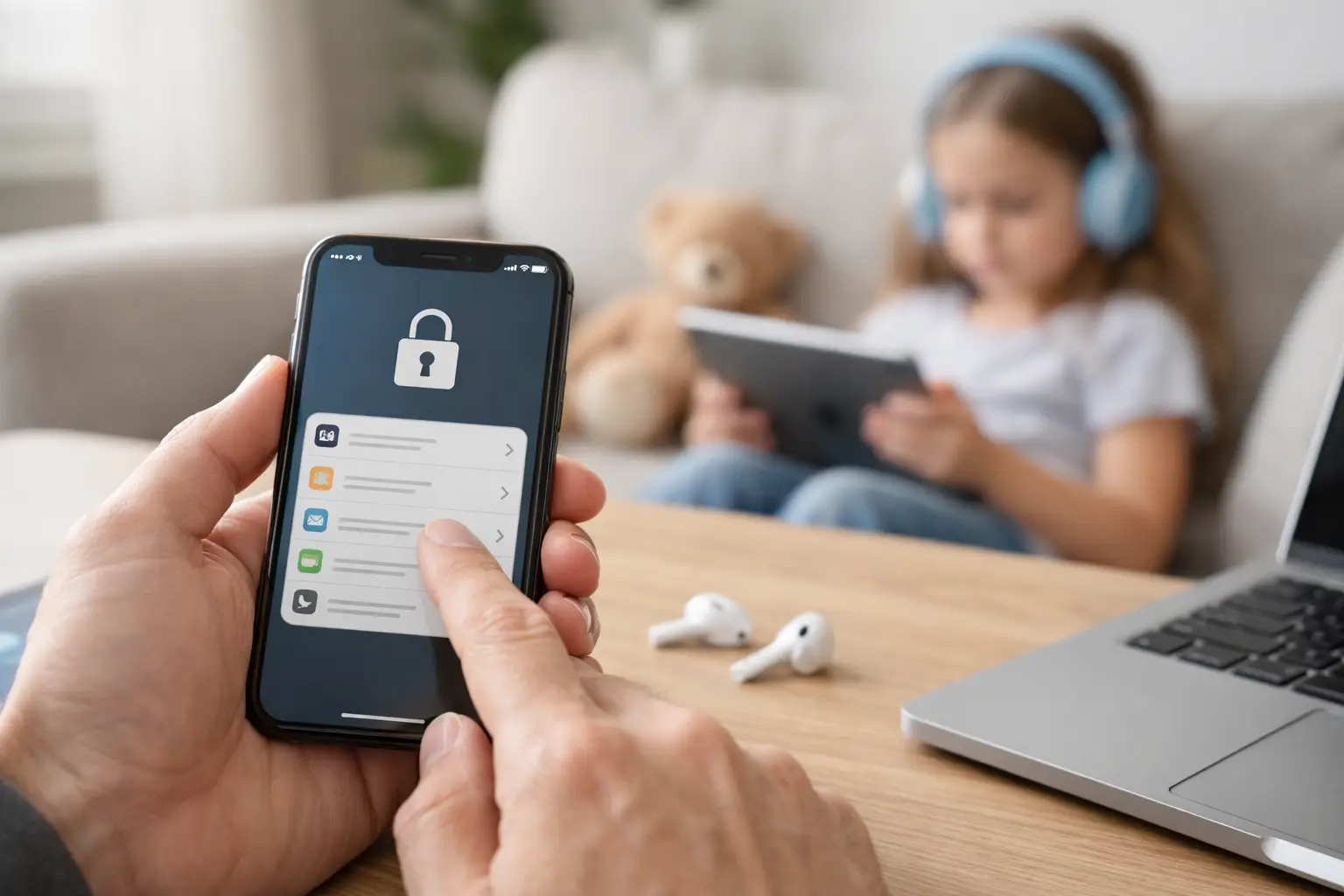
A child’s new iPhone or iPad can be a brilliant way to stay in touch, do schoolwork and enjoy a favourite game. It can also become the household’s source of unexpected app purchases, unsuitable videos and late-night messages if it is handed over without a few sensible boundaries. When you set up Apple parental controls properly, you can make the device safer without making it feel like a punishment.
The best approach is not to switch on every restriction at once. Start with the settings that genuinely matter for your child’s age and habits, then review them together as they grow. Apple’s controls are flexible, but they work best when they sit alongside clear family rules and regular conversations.
Start with Family Sharing and a child account
Apple’s parental settings are built around Family Sharing. This lets a parent or guardian manage a child’s device from their own iPhone, iPad or Mac, while the child still has their own Apple Account, photos, contacts and appropriate privacy.
On your own device, open Settings, tap your name, then choose Family. You can add an existing child account or create one for a younger child. If you are setting up a device from scratch, choose the option to create an account for a child when prompted.
It is tempting to sign a child into a spare device using Mum or Dad’s Apple Account. Avoid this where possible. Shared accounts muddle up messages, photos, contacts, purchases and backups. They also make parental controls much harder to manage. A separate account gives your child some independence while keeping the important family safeguards in place.
Once Family Sharing is working, turn on purchase sharing only if it suits your household. It can save money on paid apps and subscriptions, but it also means family members may see one another’s purchases. Many parents prefer to use Ask to Buy instead, especially for younger children.
How to set up Apple parental controls with Screen Time
Screen Time is the main control centre for an iPhone or iPad. On the child’s device, go to Settings, then Screen Time. If the child is already in your Family group, you can usually manage their Screen Time from your own device by selecting their name in the Family section.
Choose the option that confirms the device belongs to a child and create a Screen Time passcode. This is crucial. Do not use the same code as the device unlock code, and do not share it casually. Without a separate passcode, an older child can simply alter the limits you have set.
Screen Time is most useful when used in three practical ways. Downtime blocks most apps during set hours, which is useful for bedtime, meals or homework. App Limits set a daily allowance for categories such as games, social media or entertainment. Always Allowed lets you keep selected apps available even during Downtime, such as Phone, Messages or a school app.
For example, a primary-school child might have games limited to an hour after school, with Downtime beginning at 7.30 pm. A teenager may need a more flexible arrangement but could still benefit from social media limits during revision or overnight. There is no universally correct number of hours. The right setting depends on the child, their school routine and whether the device is also needed for travel, clubs or family communication.
Avoid making every useful app unavailable during Downtime. If your child needs to call you when walking home, make sure the Phone app is allowed. Likewise, check whether any school timetable, homework or transport apps need access at particular times.
Choose content restrictions that match their age
Within Screen Time, open Content & Privacy Restrictions. This is where you can control app purchases, age ratings, web content and changes to privacy settings.
Start with purchases. Set new app installs, deleting apps and in-app purchases to require your approval or block them altogether. Ask to Buy is particularly helpful because it sends a request to the organiser’s device before a child can download a paid app, make an in-app purchase or install many free apps. Free does not always mean suitable, so approval still matters.
Next, review the age ratings for apps, films, television programmes and books. These should reflect your own judgement, not only the number on the box. Some children are comfortable with a higher film rating but are not ready for open chat functions in games or unmoderated social platforms.
For web access, Apple offers unrestricted access, an option to limit adult websites, and a stricter list of approved websites only. Limiting adult websites is a sensible starting point for many families, but it is not perfect. Filters can miss unsuitable pages and occasionally block harmless ones. If you use the approved-sites option for a younger child, expect to add school and hobby websites over time.
You can also stop changes to account settings, passcodes, mobile data and location services. These restrictions help prevent accidental changes, but be careful not to lock yourself out of a setting you may need later. Make a note of what you have changed and keep the Screen Time passcode somewhere safe.
Manage communication without cutting off contact
Communication Limits and Communication Safety are worth a closer look. Communication Limits let you decide who a child can contact during normal Screen Time and during Downtime. For a younger child, restricting contact to saved contacts and family members can be reassuring.
Communication Safety is designed to warn children if they receive or try to send sensitive images in supported Apple apps and services. It is a useful additional layer, but it is not a replacement for a calm conversation about online pressure, privacy and what to do if something upsetting appears on screen.
As children get older, overly tight communication rules can become impractical. They may need to contact classmates, sports coaches or friends’ parents. In those cases, agree sensible rules about adding contacts and talk through why unknown messages, links and friend requests deserve caution.
Use location sharing thoughtfully
Family Sharing can show the location of family members through Find My, provided location sharing is enabled. This can be genuinely useful when a child is travelling independently, has missed a bus or is away on a school trip.
It should not become a substitute for trust. Explain to your child when location sharing is on and why you are using it. For many families, it works best as a safety tool for journeys and emergencies rather than a way to monitor every movement. You can adjust location-sharing settings as confidence and independence grow.
Set up parental controls on a Mac too
If your child uses a MacBook, iMac or shared family Mac, give them their own standard user account. A standard account lets them use the computer but prevents many system-wide changes. Do not make a child’s account an administrator unless there is a specific reason.
On recent versions of macOS, parental controls are also managed through Screen Time. Open System Settings, choose Screen Time, then select the relevant family member or account. You can set app limits, Downtime, content restrictions and communication settings much as you would on an iPhone or iPad.
A Mac sometimes needs a slightly different plan. Children may need longer unrestricted access for homework, research, video calls or creative projects, even if games are limited. Rather than setting a blunt overall limit, focus on the apps and times that cause the problem. A gaming limit after homework is usually more workable than blocking the whole computer at 5 pm.
Check the settings, then keep talking
Parental controls are not a set-and-forget job. Test a few things after setup: try downloading an app, open a browser, check that essential contacts can still be called, and make sure the child can use any school apps they need. It is far better to find a problem on a quiet Sunday afternoon than when they are trying to submit homework at 8 pm.
Review Screen Time reports every week or two at first. The reports may reveal a genuine issue, but they can also be misleading. An hour of Messages may mean chatting with friends, arranging a lift or working on a group project. Use the information as a starting point for a conversation, not as evidence for an argument.
If the settings feel confusing, or a family’s Apple Accounts have become tangled across old iPhones, iPads and Macs, hands-on help can save a great deal of frustration. North Dorset Mac Man can help families put the right accounts, backups and controls in place in a way that makes sense for everyday life.
The aim is not to make technology disappear from childhood. It is to give children room to learn, create and communicate while knowing there is a sensible safety net behind them.