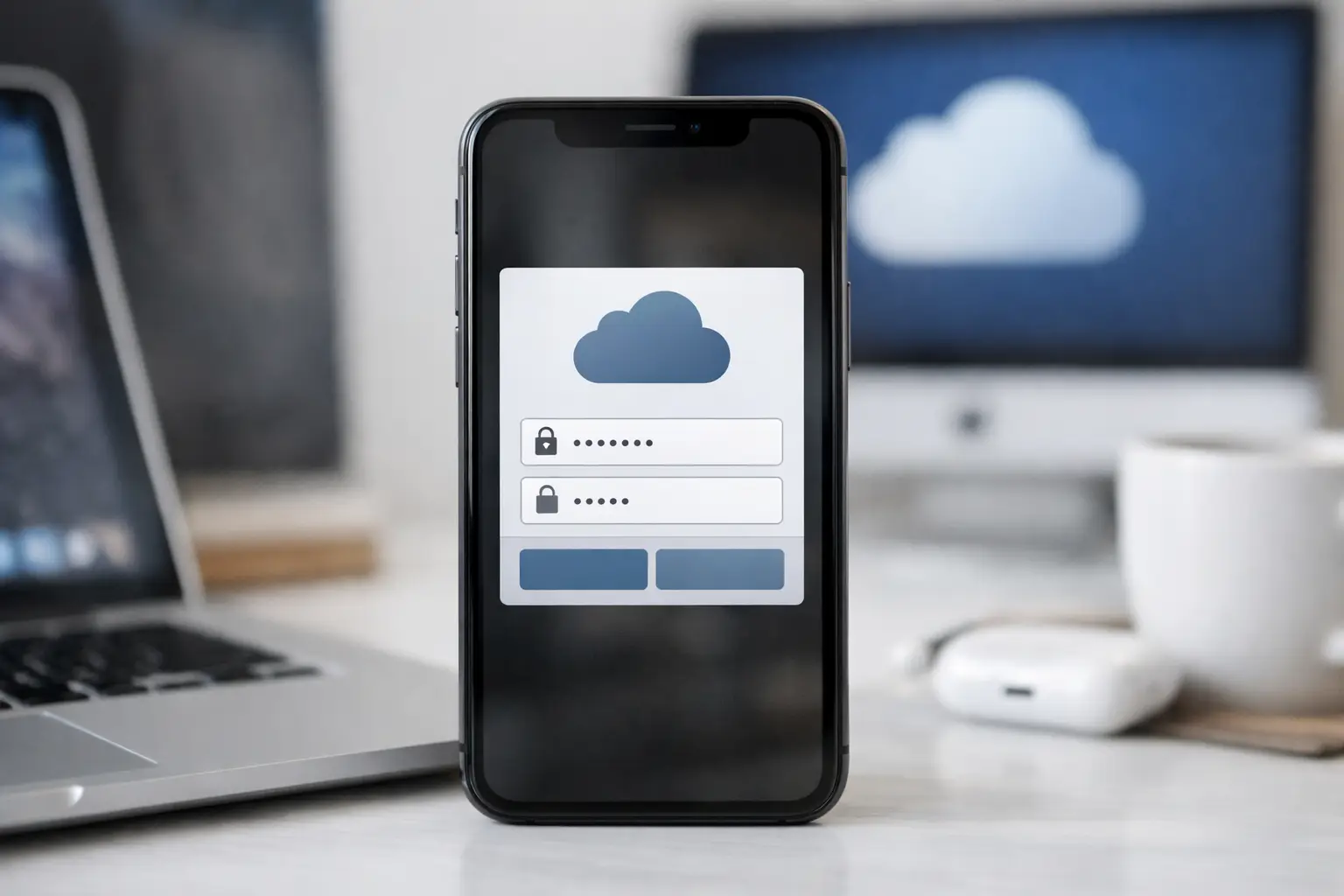
That familiar request to enter your Apple Account password can feel like a minor nuisance at first. But when iCloud password prompts appear repeatedly on an iPhone, iPad or Mac, they can interrupt work, prevent photos from syncing and leave you wondering whether something is wrong with your account. The good news is that the prompt usually has a clear cause – and it is often fixable without doing anything drastic.
Why iCloud password prompts appear
Your Apple Account password is used to confirm that you are entitled to use iCloud services such as Photos, iCloud Drive, Contacts, Keychain and device backups. Apple may ask for it after a security change, an update, a sign-in on another device or when one part of iCloud has lost its connection to your account.
A single prompt after changing your password, installing a major system update or setting up a replacement phone is normal. Repeated prompts are different. They tend to mean that a device has stored an old password, an Apple service is waiting for confirmation, or two devices are not agreeing about the current account details.
This is particularly common in households with several Apple devices. Perhaps an older iPad is still signed in, a previous iPhone is used as a spare, or a Mac has been waking from sleep with an unreliable internet connection. It can also happen in a small business where a work iPhone, MacBook and iPad all share the same Apple Account for practical reasons. That arrangement may be convenient, but it can make account issues harder to trace.
Start by checking the wording of the prompt
Before entering any password, take a moment to look at where the message has appeared. A genuine Apple request normally appears in Settings on an iPhone or iPad, in System Settings on a recent Mac, or within an Apple service such as the App Store. It should clearly identify your own Apple Account email address or phone number.
Be more cautious with a password request in an unexpected email, text message, calendar invitation or web page. Apple will not ask you to send your password or a six-digit verification code to someone by text, email or phone call. If a caller says they need your code to secure your account, end the call. That code is effectively a key to your account.
If you are unsure, close the message and open Settings or System Settings yourself. A genuine account problem will usually still be shown there.
Check whether the password works elsewhere
The quickest useful test is to enter the password carefully in the Apple Account section of Settings or System Settings. If it is accepted and the prompts stop, the issue may simply have been an expired sign-in session.
If it is rejected, do not keep guessing. Several failed attempts can complicate matters, especially when you are already frustrated. Use the password you most recently set, taking care with capitals, numbers and punctuation. Password managers can be helpful here, but check that they have not retained an older version.
If you genuinely cannot remember the password, reset it through the trusted device’s account settings. This is safer than following a password-reset link from an unsolicited message. Once changed, expect each of your Apple devices to ask for the new password. That is normal, and it is better to update them one by one than to ignore the requests.
Look for the device that is causing the loop
A repeated prompt on one device does not always mean that device is the real problem. An old Mac at home, an iPad in a drawer or a phone that has recently been repaired may still be trying to connect using old details.
Check the list of devices attached to your Apple Account. On an iPhone or iPad, open Settings and select your name at the top. On a Mac, open System Settings and select your name. Scroll through the device list and look for anything you no longer own or recognise.
Remove unknown devices promptly. For devices you do own but no longer use, signing out properly or removing them from the account can stop needless requests. Be careful not to remove a current device just because its name is unfamiliar – several iPhones may have similar names. Checking the model and last-used information first can avoid creating more work.
If a device belongs to another family member, it is usually best for them to use their own Apple Account. Family Sharing allows purchases, storage and subscriptions to be shared while keeping passwords, messages, photos and contacts separate. One shared account often causes confusion, accidental photo mixing and persistent sign-in prompts over time.
Check iCloud services, storage and internet access
Sometimes the password is correct, but an individual iCloud service is stuck. Photos, Drive, Keychain or Mail may be waiting for a fresh sign-in after an update or a period without internet access. A poor Wi-Fi signal can make this look like a password problem when it is really a connection problem.
First, confirm that the device can open a few ordinary websites and that the date and time are set automatically. Then restart the device. Restarting clears many temporary sign-in faults and is worth doing before changing account settings.
Next, check iCloud storage. A full iCloud account does not usually cause a password prompt by itself, but it can stop backups and photo syncing, which is often noticed at the same time. If storage is full, decide whether to remove old backups, reduce what is being backed up or increase the storage plan. Do not delete photos or files in a hurry unless you are certain they are safely stored elsewhere.
On a Mac, it can also help to install pending macOS updates. Older versions of macOS may struggle with newer account-security requirements. The trade-off is that major updates can affect older software, so a current backup is sensible before making significant changes.
Avoid signing out of iCloud too quickly
Signing out of iCloud and signing back in can solve a stubborn loop, but it should not be the first response. It may require passwords for other services, can temporarily remove synced information from the device and may be unsettling if you are not sure what is stored locally.
Before signing out, make sure you know the current Apple Account password and that you have access to a trusted mobile number or trusted device for verification. Check that important files, photos and contacts have had time to sync. If a Mac contains documents that only exist on that Mac, make a backup first.
For many people, checking the password, restarting, updating the device and dealing with the old device list is enough. Sign out only when the problem continues and you are comfortable working through the options carefully.
When two-factor verification gets in the way
Apple’s two-factor authentication is there to protect you. After entering your password, a verification code may appear on another trusted device. This can be awkward if that device is switched off, has been sold, or is sitting at home while you are away.
Keep at least one current trusted mobile number on the account and update it when you change your mobile number. If you have replaced a mobile phone, do this early rather than waiting for an account problem. For a business owner, it is also worth considering what happens if the person who holds the trusted mobile number is unavailable. Account access should not depend entirely on one employee’s personal mobile phone.
Never turn off sensible security measures simply to stop prompts. The better fix is to make sure your recovery information and trusted devices are current.
When it is time to ask for help
If the same iCloud password prompt returns after you have entered the correct password, restarted the device and checked the account settings, it is worth getting it looked at. This is especially true if Photos will not sync, backups have stopped, a device is showing someone else’s account, or you are worried that the prompt may be fraudulent.
A hands-on check can identify whether the issue is the Apple Account, the device, the Wi-Fi network, a software update or an old account connection that has been missed. For Dorset households and small businesses, North Dorset Mac Man can work through this calmly at home or at work, without leaving you to decipher vague error messages alone.
The safest approach is usually the least dramatic one: pause before entering details, verify that the request is genuine, and change only one thing at a time. A few patient checks now can protect years of photos, contacts, documents and the everyday Apple setup you rely on.