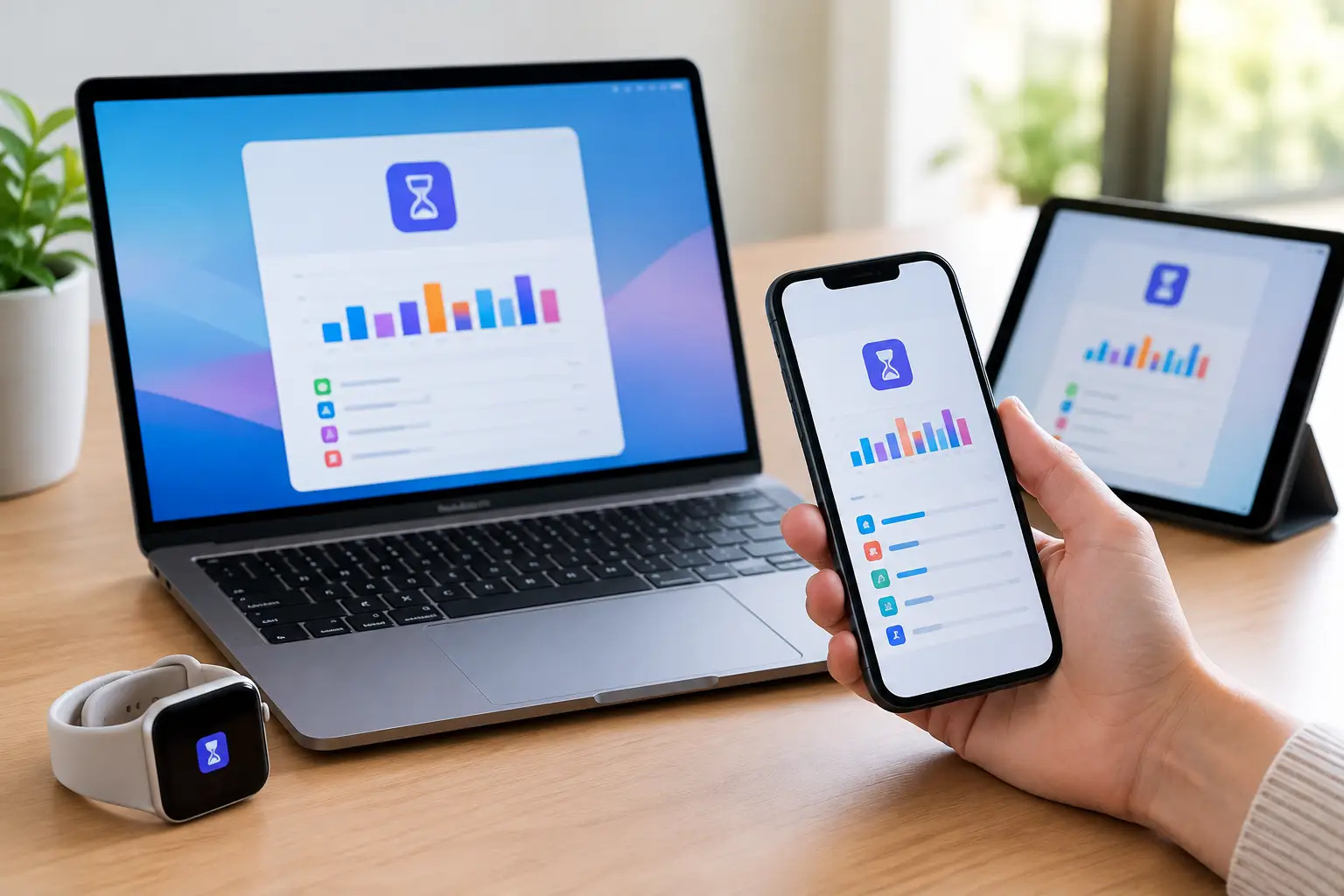
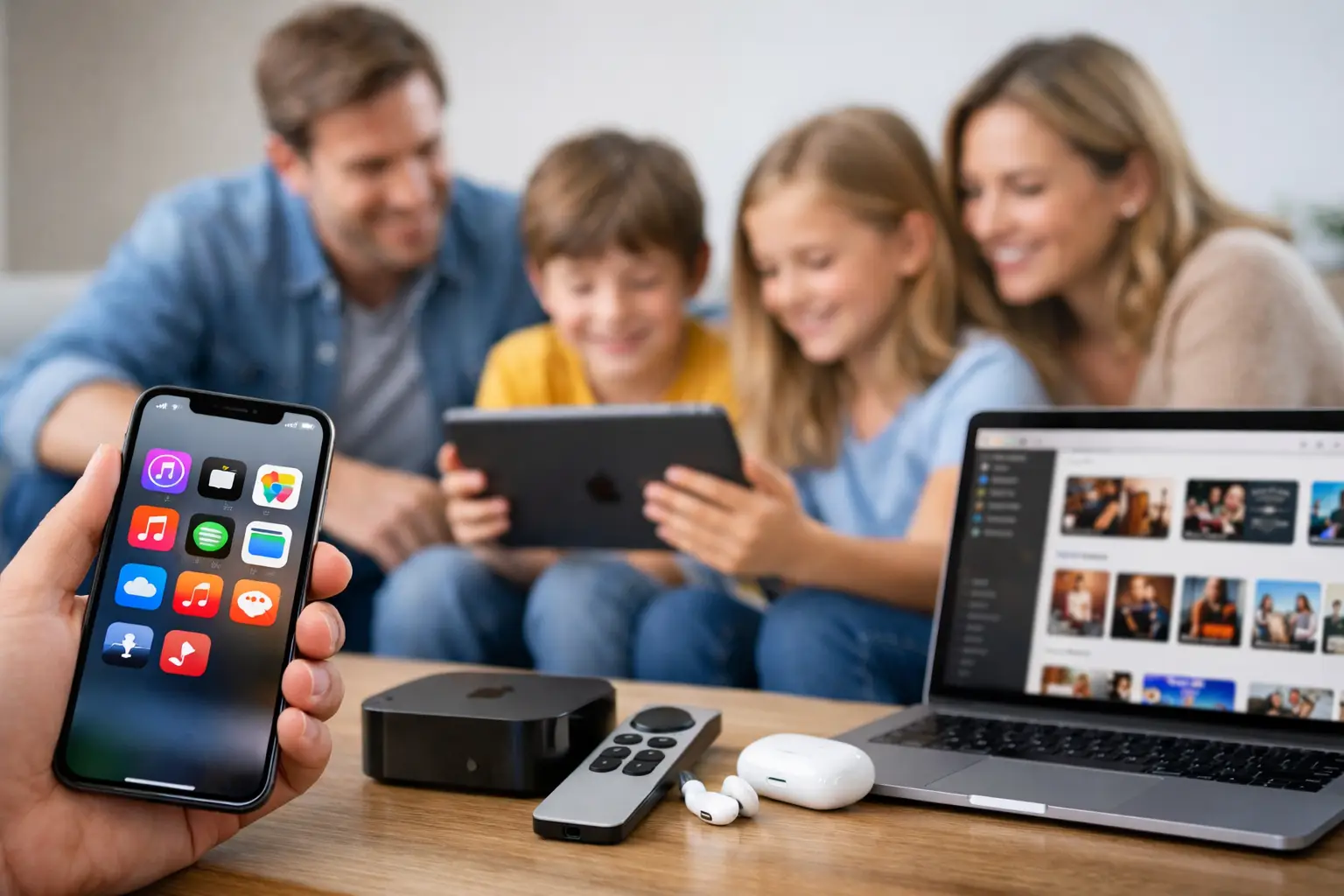
A family can easily end up paying for the same Apple service two or three times without realising it. If everyone has their own iPhone, iPad or Mac, knowing how to share Apple subscriptions can reduce that clutter while still keeping each person’s photos, messages and recommendations private.
Apple’s Family Sharing is designed for this job. One person creates a family group, invites up to five other people, and chooses which eligible subscriptions and purchases to share. It is useful for households with children, couples managing several devices, and adult families helping a parent get the most from their Apple setup.
How to share Apple subscriptions using Family Sharing
Before changing anything, check that every family member has their own Apple Account. They should not all sign in with one shared account. A shared account can mix up contacts, photos, messages, passwords and Find My locations, and it makes sorting out purchases much harder later on.
The family organiser is normally the person happy to manage payments and invitations. On an iPhone or iPad, open Settings, tap your name at the top, then tap Family. On a Mac, open System Settings, select your name, then choose Family. From there, select the option to set up your family group and invite people by entering the email address or phone number connected to their Apple Account.
Each person needs to accept the invitation on their own device. Apple may ask them to confirm their account details, and family members will usually need to be using the same country or region for the arrangement to work properly.
Once the group is active, return to Family settings and look for Subscriptions. The organiser can see services that are eligible to share and switch sharing on where needed. For subscriptions bought through the App Store, the subscription owner may also need to open Settings, tap their name, choose Subscriptions, select the service and turn on Share with Family if that option appears.
The exact wording can differ slightly between iPhone, iPad and Mac software versions, but the principle is the same: set up the family group first, then enable sharing for each suitable subscription.
Which Apple subscriptions can your family share?
Many Apple services work well with Family Sharing. Apple TV+, Apple Arcade, Apple Fitness+ and Apple News+ can generally be shared with the family group. Apple One Family and Apple One Premier plans are also built around sharing several services together.
Apple Music needs a little more care. An individual Apple Music plan is for one person and cannot simply be shared with the household. To give everyone their own music library, playlists and recommendations, change to an Apple Music Family plan or an Apple One plan that includes family access.
iCloud+ storage can be shared too. This gives family members access to a common storage allowance, such as 200GB or 2TB, without merging anyone’s personal iCloud data. Your photos, backups, notes, documents and email remain private unless you choose to share particular items or create a shared photo library.
Third-party app subscriptions are different. Some developers support Family Sharing, while others do not. If an app is eligible, its subscription page will normally say so. If the Share with Family option is missing, the developer has not made that subscription available to the group, even if it was purchased through Apple.
Check the payment arrangement before you share
This is the part that catches many households out. Family Sharing can include Purchase Sharing, which allows members to access eligible apps, films, books and other purchases made by the family. In many cases, new purchases are charged to the family organiser’s payment method.
That may be perfectly sensible for parents with younger children, especially when Ask to Buy is enabled. It can be less suitable for adult children, partners or relatives who want to pay for their own apps and occasional rentals. Talk about this before sending invitations, rather than trying to untangle unexpected charges afterwards.
You can review Purchase Sharing in the Family settings and decide whether it is right for your household. Sharing subscriptions does not mean you must share every purchase. It is often worth keeping the setup simple at first: share the services everyone genuinely uses, then review purchase sharing separately.
If a child is part of the group, Ask to Buy is particularly helpful. A parent or organiser receives a request before an app, game, film or in-app purchase is approved. It does not remove every cost, but it prevents the classic surprise of a game purchase appearing on the card statement.
What stays private in an Apple family group?
Joining Family Sharing does not hand over access to someone else’s phone or computer. Family members keep their own Apple Accounts, and their personal photos, messages, call history, Safari history, passwords and email are not visible to the organiser.
There are a few settings to understand. Family members can choose whether to share their location through Find My, and this should be a conversation rather than an assumption. Location sharing can be very reassuring for families, particularly when children are travelling or an older relative needs support, but it can be turned off at any time.
Shared iCloud+ storage is also commonly misunderstood. It shares storage capacity, not files. The organiser may be able to see how much storage each person uses, but not browse their pictures or open their documents. A Shared Photo Library is separate and only includes items people actively add or set to share.
When sharing does not appear to work
If someone cannot see Apple TV+, Apple Arcade or another shared service, start with the basics. Check that they have accepted the Family Sharing invitation and are signed into the App Store and Media & Purchases with the Apple Account that belongs to the family group. A device restart and signing out and back in can sometimes refresh a stuck entitlement, but do not start changing passwords unless there is a clear reason to do so.
Then check whether the subscription is genuinely shareable. An individual Apple Music plan, for example, will not become a family plan merely because the account joins Family Sharing. Similarly, an app developer may choose not to support sharing at all.
Country or region mismatches can also cause frustration. A family member who has moved their Apple Account to another region, perhaps after living abroad or using a different payment setup, may need to resolve that before joining. Apple also limits how often someone can move between family groups, so avoid repeatedly removing and re-inviting people as a quick fix.
For subscriptions billed directly by a provider rather than through Apple, the answer may sit in that provider’s own account settings. A streaming service purchased on its website, for example, may have its own household rules and profiles. Family Sharing will not automatically control it.
A sensible way to organise a household setup
For most homes, start with the services that offer a clear saving: iCloud+ storage, Apple TV+, Apple Arcade or a proper Apple Music Family plan. Keep every person on their own Apple Account, decide who will manage the payment method, and explain location sharing and Ask to Buy before switching them on.
If the settings feel confusing, or a family has inherited a muddled collection of old Apple Accounts and subscriptions, it is usually quicker to get it sorted carefully than to keep paying twice. North Dorset Mac Man can help households across Dorset set up Family Sharing properly, explain the privacy choices in plain English and make sure everyone can use the services they are paying for.
A few minutes spent checking the family group now can make daily Apple life much calmer – especially when the next new device arrives, a child downloads a game, or someone suddenly runs out of iCloud storage.