
A new Mac can be a brilliant companion for keeping in touch, looking at family photos, managing appointments and enjoying hobbies. But the first hour can feel needlessly daunting if everything is left at its standard settings. To set up Mac for pensioners properly, start by making it comfortable to read, safe to use and simple to find your way around.
The aim is not to strip away every feature. It is to make the Mac feel familiar and dependable, so everyday jobs such as sending an email or joining a video call do not turn into a hunt through menus.
Start with the person, not the settings
Before creating accounts or downloading apps, ask how the Mac will be used. Someone who mainly wants to email family, browse local news and view photographs needs a different set-up from someone managing online banking, writing a family history or running a community group.
It also helps to find out what they already use. If they have an iPhone or iPad, using the same Apple Account means contacts, photos, notes and passwords can appear on the Mac automatically. That can be very convenient, but only if the Apple Account password and recovery details are known and recorded somewhere safely.
Set the Mac up with its owner present wherever possible. It is tempting for a relative to rush through the process and hand over a finished computer, but confidence comes from seeing where things are and having a go. A calm explanation at the beginning often saves many worried calls later.
Make the screen easier to see
A crisp screen is no help if the writing is too small. Start in System Settings, then look at Displays and Accessibility. Increase text size where available, choose a comfortable display resolution, and make sure the brightness is high enough for the room where the Mac will usually sit.
Under Accessibility, the Display options can make a real difference. Increasing contrast can help menus stand out, while reducing transparency makes windows less visually busy. The cursor can also be made larger, which is particularly useful on a big iMac screen where it is easy to lose sight of it.
Use zoom without making everything permanent
The Zoom feature is worth setting up even for people with good eyesight. It allows part of the screen to be enlarged when needed, perhaps to read a small form or a recipe. Enable the keyboard shortcut and practise it together, then show how to turn it off again. It is a useful tool, not a sign that the whole Mac needs to be oversized.
Safari has its own page zoom controls as well. Setting a preferred larger text size can make websites far more pleasant to read, especially those with small type or crowded advertisements.
Keep the desktop calm and predictable
A desktop covered in files, photos and mysterious icons quickly becomes confusing. Give the Mac a simple starting point: a clear wallpaper, only a few useful items in the Dock, and folders with obvious names such as Documents, Letters and Photos.
Remove apps from the Dock if they are unlikely to be used. In their place, keep the essentials visible: Safari, Mail, Photos, Messages, FaceTime, Calendar and perhaps a video calling app used by the family. If a printer is used regularly, add it properly and print a test page before you leave.
Avoid adding lots of shortcuts “just in case”. More choices do not always mean more freedom. A smaller number of familiar options is usually easier to remember.
Set up email, contacts and video calls carefully
Email is often the most important service on a new Mac. Add the email account through System Settings or the Mail app, then send and receive a test message. Check that the sender name is correct and that messages are not being sent from an old or unwanted address.
Create a few key contacts with names that make immediate sense, such as “Jane – daughter” or “Dr Patel surgery”. If they use Messages or FaceTime, test those too. A first call to a family member can turn a technical set-up into something genuinely enjoyable.
For people who find typing difficult, show them dictation. Speaking an email aloud can be much easier than using the keyboard, although it is sensible to read the message through before sending it. Voice Control may also be useful, but it takes a little more practice and will not suit everyone.
Put security in place without causing anxiety
Online safety should be built into the set-up, not introduced later after a scare. Use a strong Mac login password that the owner can remember, rather than an over-complicated password written on a sticky note beside the screen. Touch ID, where available, is especially helpful for signing in and approving purchases.
Turn on automatic macOS updates. Security updates are one of the simplest protections available, and postponing them indefinitely leaves a Mac more exposed than it needs to be. Make sure the firewall is enabled, and avoid installing unnecessary “cleaner”, antivirus or pop-up blocking apps from adverts. Many cause more confusion than protection.
Explain the most common scams in plain English
The useful message is simple: Apple, a bank, HMRC or a broadband company will not normally ring unexpectedly and demand remote access, passwords or payment by gift card. If a pop-up says the Mac has a virus and gives a phone number to call, close the browser window and ask for help.
It is worth showing how to spot the difference between a real email and one that only looks convincing. Check the sender’s address, be suspicious of urgent demands, and never enter a password after following a link in an unexpected message. No setting can replace a little confidence about when to pause.
Make passwords and recovery details manageable
Apple’s password tools can save passwords and fill them in when needed, which is helpful when used correctly. Make sure the owner understands that saved passwords are protected by their Mac login or Touch ID, not visible to anyone who sits down at the computer.
Set up account recovery details carefully. A trusted family member may be able to help recover an Apple Account, but that person should be genuinely trusted and willing to assist if needed. Record the important information in a secure place, including the Apple Account email address, recovery telephone number and where a backup is kept.
Do not share one Apple Account across several adults merely because it seems easier. Shared accounts can mix up photographs, messages, contacts and purchases. Family Sharing is usually a better arrangement where appropriate.
Protect photographs and important documents
For many people, family photographs are the most precious thing on the Mac. If iCloud Photos is enabled, explain that deleting a photo on one Apple device may remove it from the others too. This is not a reason to avoid it, but it is a reason to understand it.
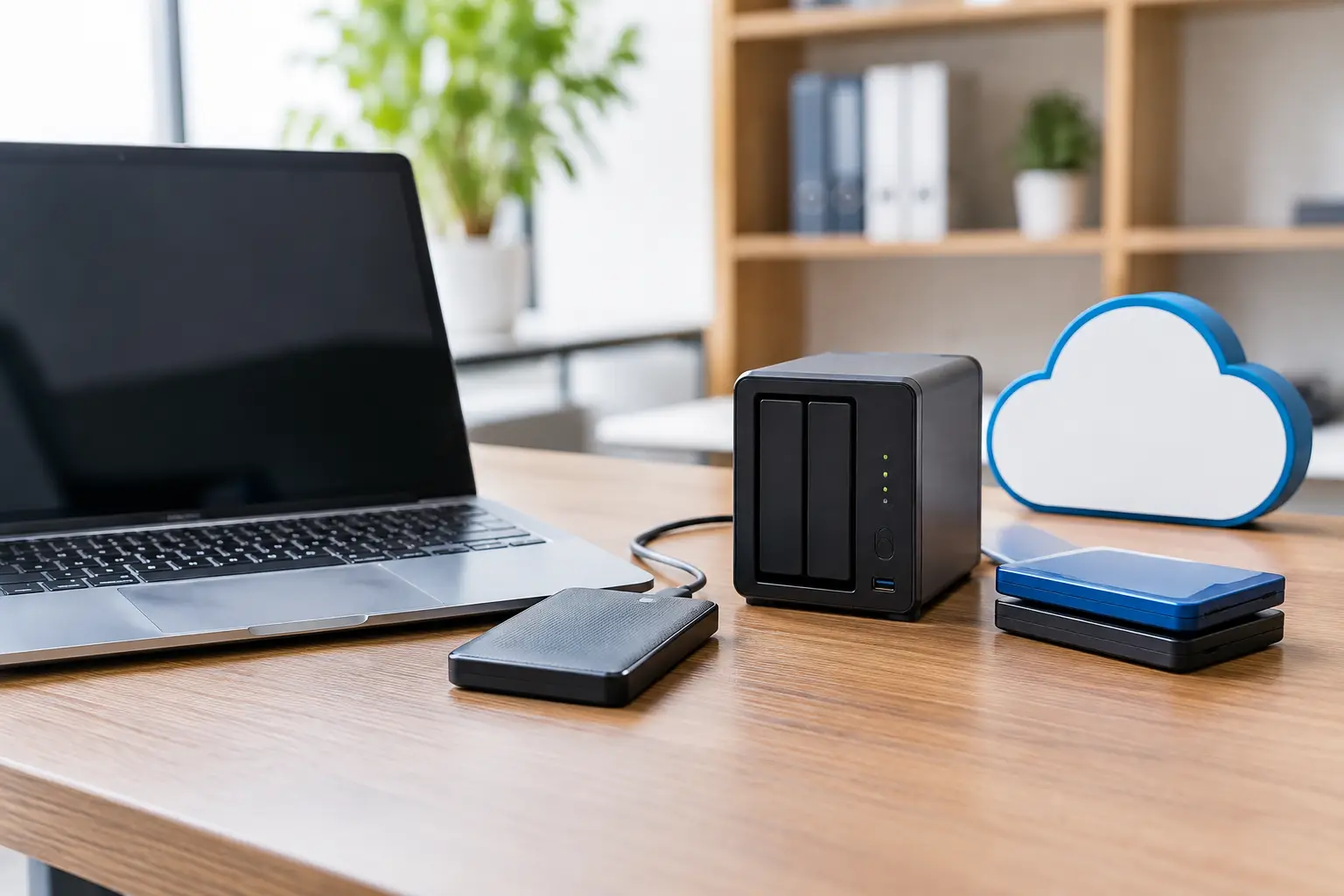
A proper backup is still essential. Time Machine can back up the Mac to an external drive automatically, and it is one of the best safeguards against accidental deletion, hardware failure or a troublesome update. Choose a drive with enough capacity, plug it in, let the first backup complete, and leave it connected if practical.
Important documents such as scanned certificates, letters and tax information should be placed in clearly named folders. A simple folder structure is easier to maintain than a complicated filing system that is abandoned after a week.
Add useful features slowly
There is no need to install every app suggested by a friend. Begin with the built-in Apple apps and add only what supports a real routine. A local library app, a newspaper subscription, a preferred radio service or a family video-calling tool may all be worthwhile.
If the person uses online banking, help them find the bank’s genuine website by typing the address or using a trusted bookmark. Never save bank card details in a random shopping site, and avoid letting browsers remember sensitive information on a shared Mac.
For someone living alone, it can be reassuring to set up a regular video call or shared calendar reminder. Technology is at its best when it makes ordinary contact easier, rather than becoming another task to manage.
When a home visit is the better option
Some Mac set-ups are straightforward. Others involve old email accounts, years of photographs, a printer that has stopped working, an iPhone with a different Apple Account, or worries after a suspicious phone call. In those cases, patient one-to-one help is far more useful than trying to follow generic instructions online.
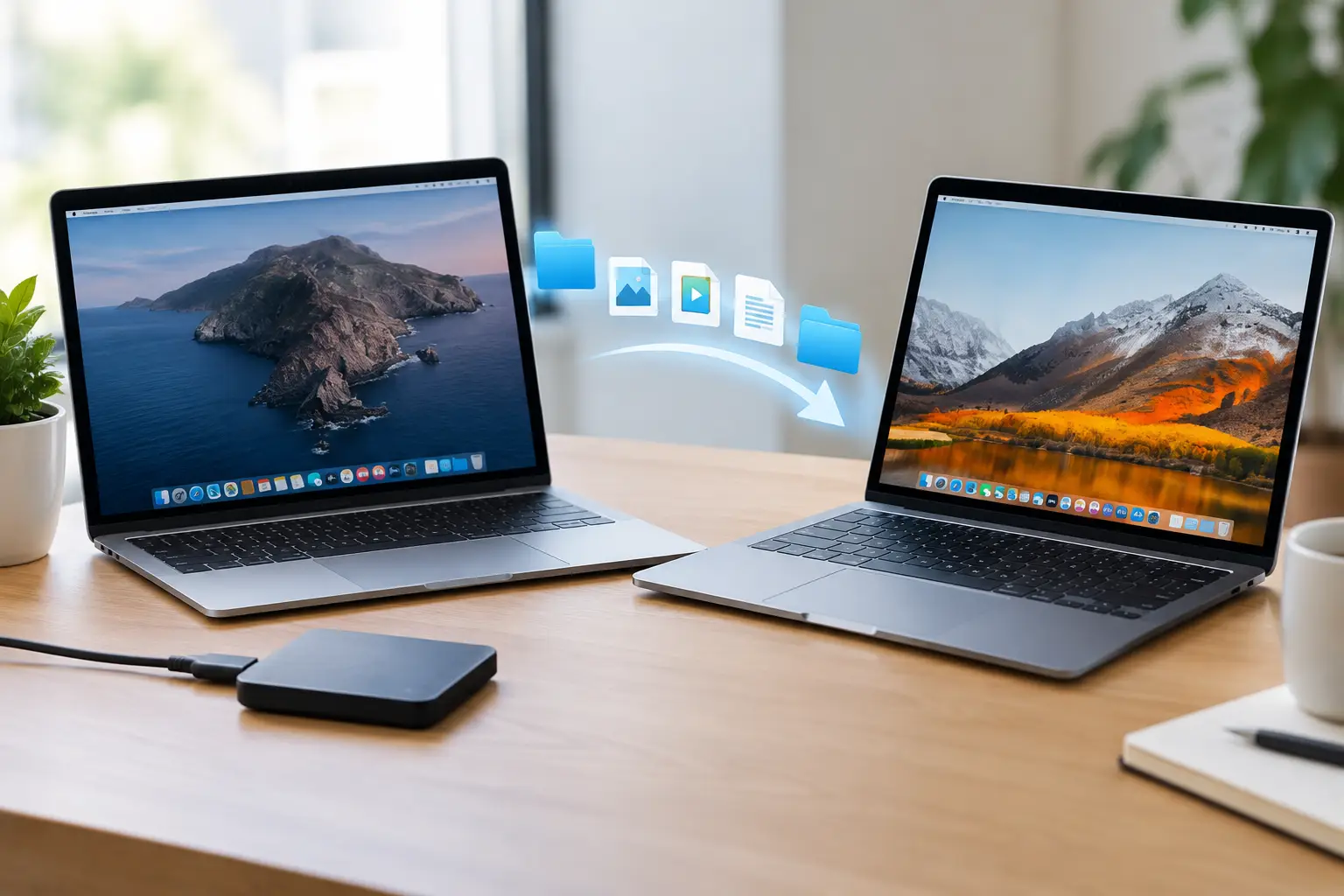
North Dorset Mac Man can set up a Mac at home, explain each part in plain English and make sure the owner can use it before the visit ends. That can include transferring data from an older computer, sorting iCloud, connecting printers and checking that backups are genuinely working.
A well-set-up Mac should feel like a helpful household tool, not a machine that must be treated with caution. Give it a little time at the start, keep the layout simple, and encourage the owner to explore one familiar task at a time. The confidence that follows is often the most valuable part of the set-up.