A full iPhone storage warning has a habit of appearing just before a family birthday, a school event or a holiday. The good news is that you can transfer iPhone photos safely without deleting precious memories or creating a confusing collection of duplicates. The best method depends on where the pictures need to go, how many you have, and whether you want a proper backup or simply want to send a few images.
Before You Move Anything, Check Your Photo Setup
Open Settings, tap your name, then iCloud and Photos. If Sync this iPhone is switched on, your photo library may already be syncing to iCloud. That is useful, but it is not quite the same as having an independent backup. If a photo is deleted from one device while iCloud Photos is active, it is normally deleted from the other synced devices too.
Also check whether Optimise iPhone Storage is enabled. This saves space on the phone by keeping smaller versions of older photos on the device while the originals remain in iCloud. It is usually a sensible setting, but it can mean that a Mac or PC needs time and a reliable internet connection to download full-quality originals.
Before a large transfer, connect the iPhone to power, use dependable Wi-Fi where relevant, and make sure the destination has sufficient free storage. Photos and videos consume more space than most people expect, particularly Live Photos, 4K video and years of family albums.
Transfer iPhone Photos to a Mac
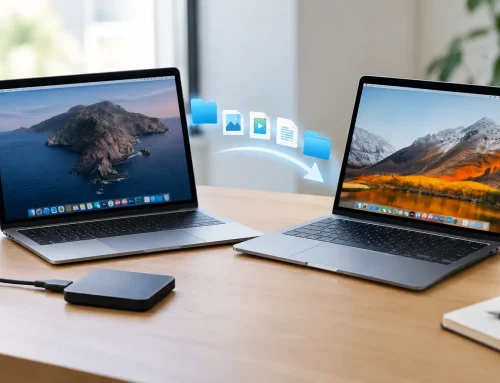
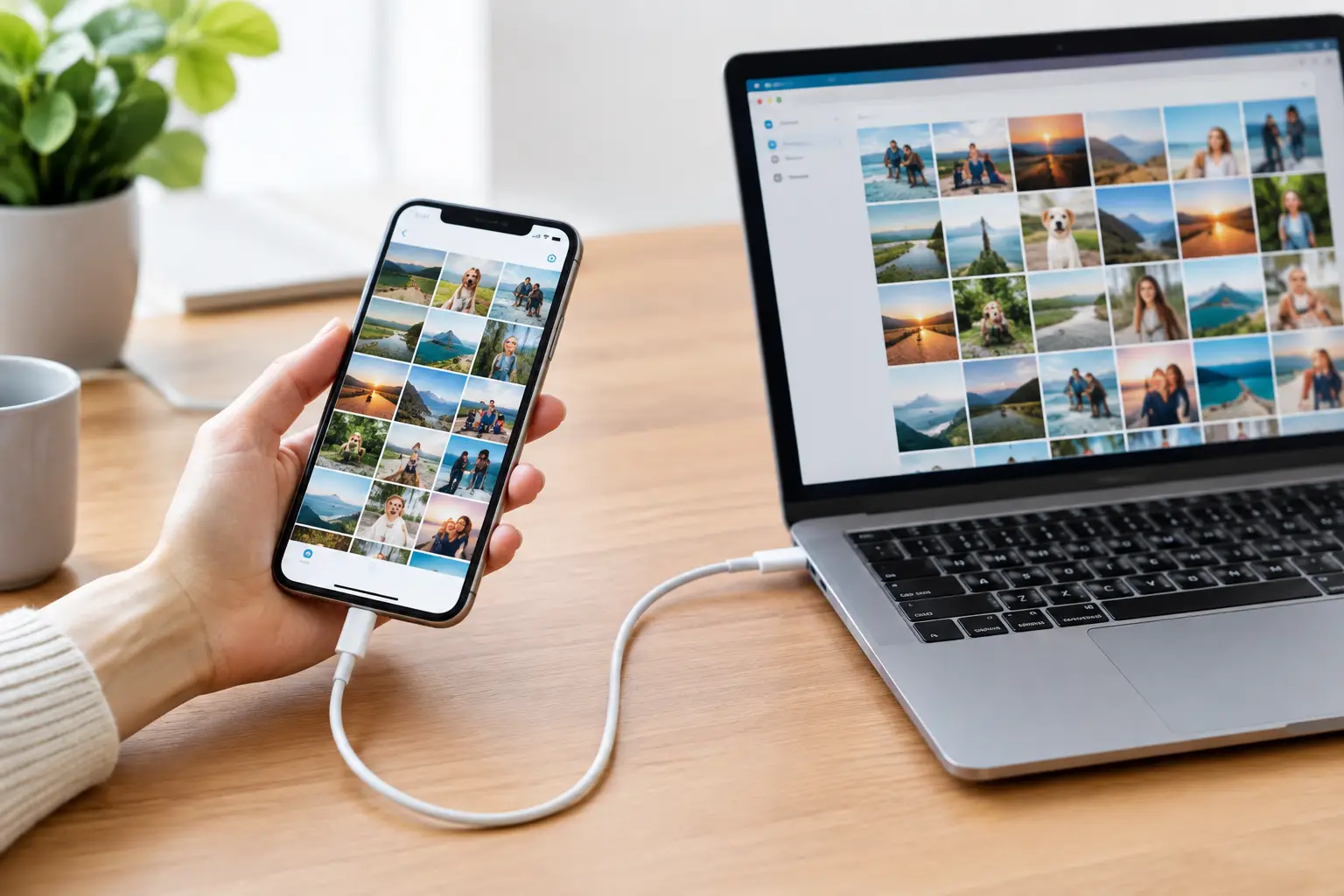
For most Apple households, the Photos app is the easiest way to manage a long-term library. Connect the iPhone to the Mac with a cable, unlock the phone and tap Trust if asked. Open Photos on the Mac, select the iPhone in the sidebar, then choose the photos to import or use Import All New Photos.
This approach is particularly good if you want to create a local copy on the Mac. Once imported, allow time for the transfer to finish before unplugging the cable. You can then organise images into albums, edit them and include them in a Mac backup.
If iCloud Photos is enabled on both devices using the same Apple Account, the images should appear in the Mac Photos app automatically. This is convenient, especially for a small number of recent pictures, but it relies on iCloud storage and internet access. A cable import can be quicker and more reassuring when transferring a large library or helping somebody who does not want everything tied to cloud syncing.
Keep a Separate Backup of Your Photo Library
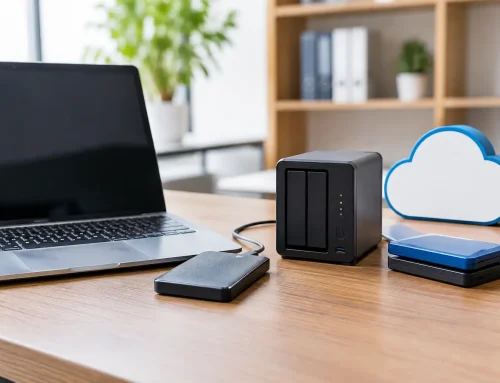
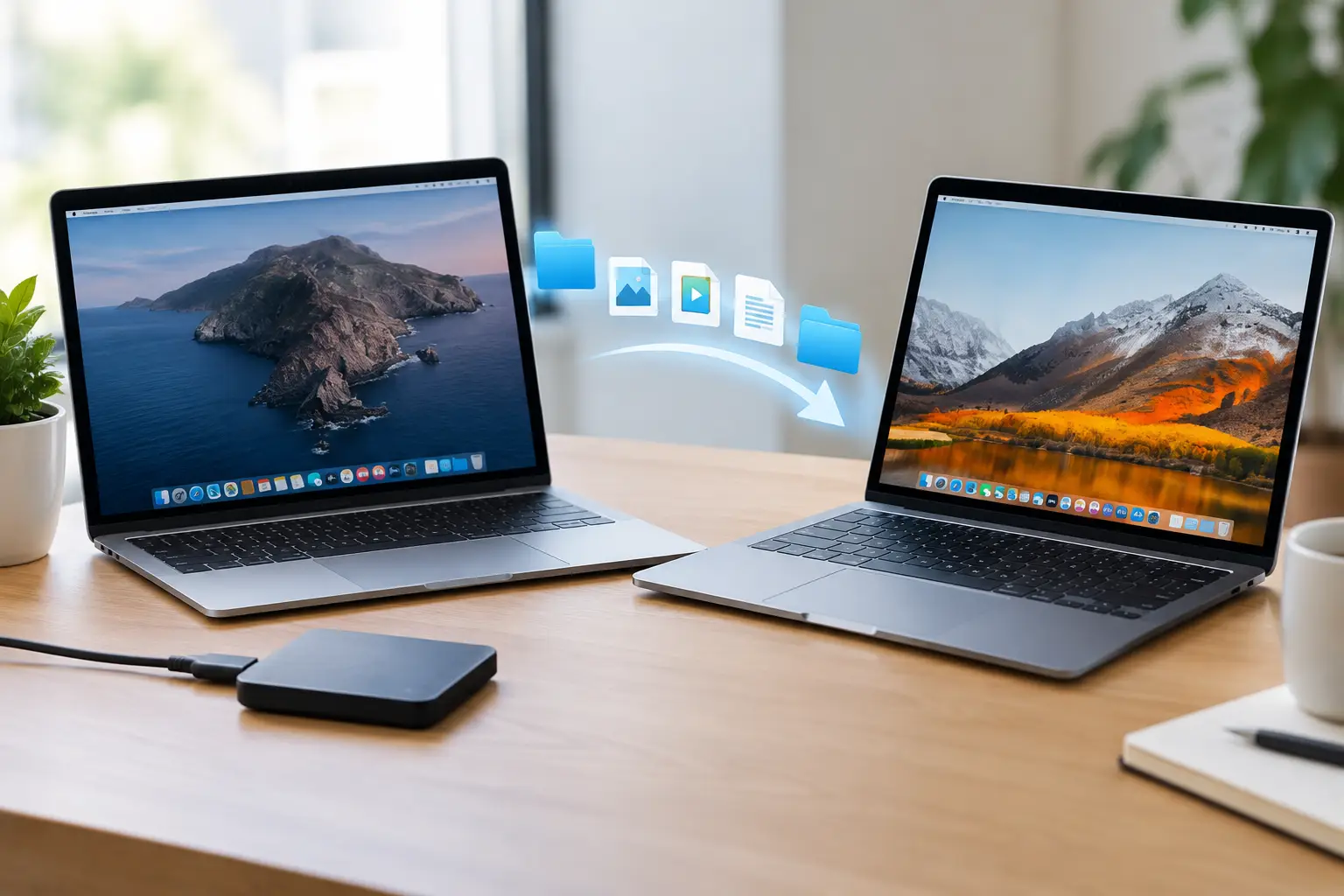
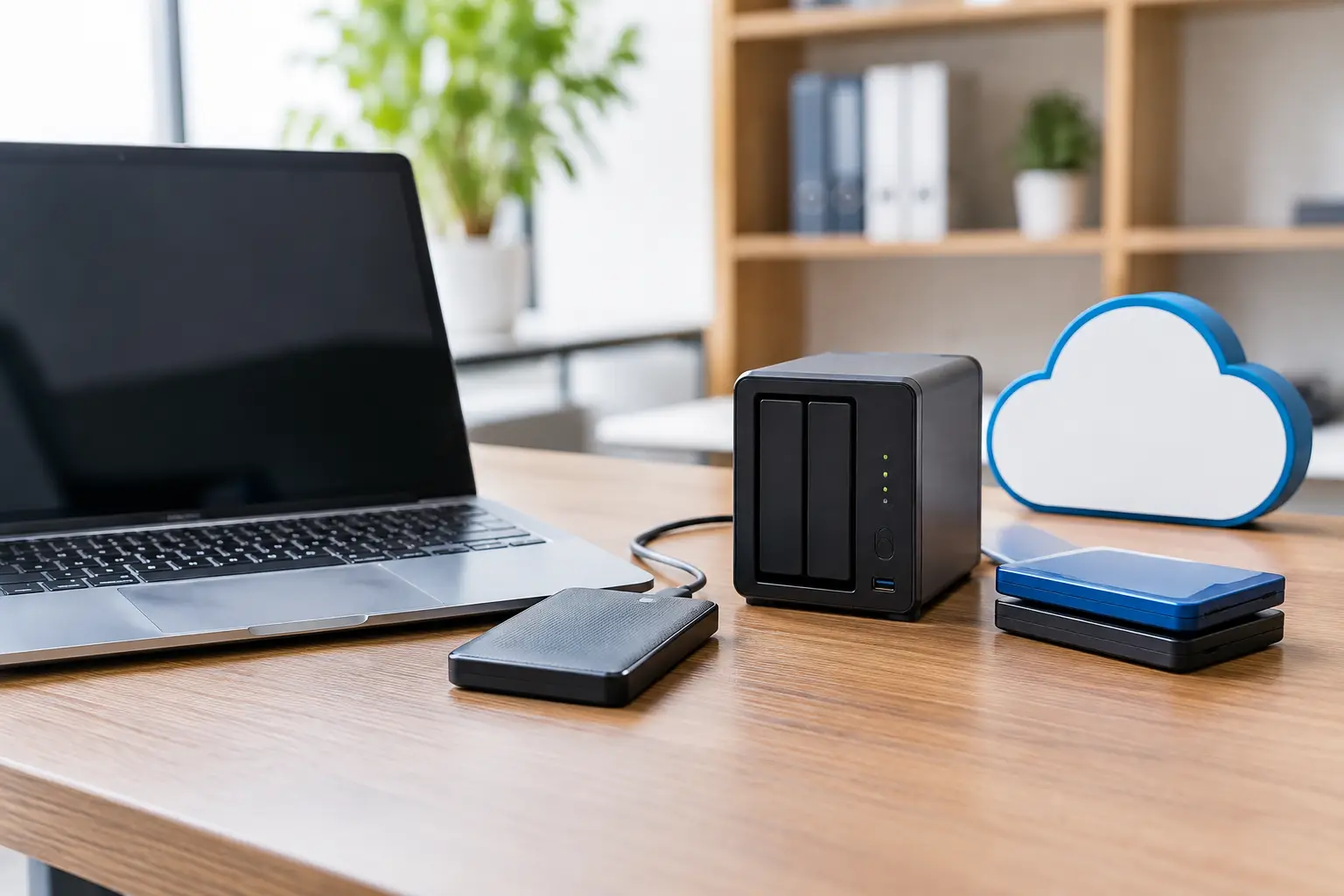
A Mac can hold your imported pictures, but it still needs backing up. Time Machine to an external drive is a straightforward option for many homes and small businesses. For very important images, such as client work, family archives or photos used in a local business website, keep another copy on a separate drive as well.
Avoid treating one external drive as the only safe place for everything. Drives can fail, get misplaced or be damaged. The practical goal is to have more than one copy, in more than one place.
Use AirDrop for a Smaller Selection
AirDrop is ideal when you want to send a handful of images from an iPhone to a nearby Mac, iPad or another iPhone. In the Photos app, select the pictures, tap the share button and choose AirDrop. The receiving device must have Wi-Fi and Bluetooth switched on and be set to receive from contacts or everyone for a limited period.
AirDrop keeps the original quality and is far better than sending photos through many messaging apps, which often reduce image size. It is useful for sharing a few pictures with a family member or moving product photos from an iPhone to a Mac before adding them to a website.
It is less suitable for thousands of images. Very large batches can take time, and it is easy to lose track of what has already been sent. For an entire camera roll, use a cable import or cloud sync instead.
Transfer iPhone Photos to a Windows PC
You do not need a Mac to copy photos from an iPhone. Plug the iPhone into the Windows computer using a good-quality USB cable, unlock it and tap Trust. Windows should then recognise it as a connected device.
You can use the Windows Photos app to import pictures, or open File Explorer, select the iPhone and browse the DCIM folders. Copy the files into a clearly named folder on the PC, perhaps organised by year or event. Do not move or delete the originals from the iPhone until you have checked that the transferred files open properly.
Windows imports can occasionally be frustrating because iPhones store photos in several folders and may use HEIC format rather than JPEG. HEIC gives excellent quality with smaller file sizes, and modern Windows versions generally handle it well. However, older software or some business systems may prefer JPEG. The iPhone setting at Settings > Apps > Photos > Transfer to Mac or PC can be set to automatic conversion where needed.
Videos deserve extra attention. They are large, may take longer to copy and can fail part-way through if the phone locks or the cable disconnects. Transfer them in sensible batches rather than attempting years of video in one go.
Moving Photos to a New iPhone or iPad
If you are replacing an iPhone, the simplest route is normally Apple’s device-to-device setup. Keep both devices nearby, connected to Wi-Fi and power, and follow the on-screen prompts. This can bring across apps, settings, messages and photos together.
iCloud Photos is another good option when the new device uses the same Apple Account. Your library will appear gradually after you sign in, provided there is enough iCloud storage and a reliable connection. Do not be alarmed if thumbnails arrive before full-resolution originals. That is normal, especially with a large library.
For an iPad used mainly for viewing pictures, iCloud Photos works well. Just remember that deleting an image from the iPad can delete it everywhere else if syncing is enabled. For a separate, fixed archive, copy the photos to a computer or external drive rather than relying on a synced device.
Safely Free Up Space on the iPhone
Once you have transferred and checked your photos, you may want to remove some from the phone. Start by confirming the copies are present on the Mac, PC or external drive and that a few images and videos open correctly. Check more than one folder, especially if you imported a large batch.
Then delete unwanted photos from the iPhone Photos app. They remain in Recently Deleted for a period, which gives you a useful safety net but does not immediately release all the storage. Empty that album only when you are certain the copies are safe.
If iCloud Photos is active, deleting from the iPhone is a library-wide action. If your real aim is simply to make room on the phone, switch on Optimise iPhone Storage instead of deleting the originals. It is often the better answer for people who want their whole collection available without paying for a new phone just because the storage is full.
Common Problems When Photos Will Not Transfer
When an iPhone does not appear on a computer, begin with the basics: unlock it, reconnect the cable, tap Trust, and try another USB port. Charging cables are not always capable of reliable data transfer, so a different cable can solve the problem surprisingly often.
If the import stops, prevent the iPhone from locking and try smaller batches. Restarting both devices can also clear a stubborn connection issue. For iCloud transfers that seem stuck, check that the correct Apple Account is signed in, Wi-Fi is stable and iCloud storage is not full.
Duplicates are another common worry. Photos on a Mac can identify many duplicate images, but it is better to prevent the problem by choosing one main transfer method. For example, if iCloud Photos is already syncing your complete library to the Mac, do not also repeatedly import the same images by cable unless you have a specific reason.
Photo libraries are personal, and sorting out years of pictures can feel more daunting than it should. If you would rather have someone sit with you, explain the choices in plain English and make sure your memories are properly protected, North Dorset Mac Man can help at home or at work. A little care now makes it much easier to find, share and enjoy the photos that matter later.