A convincing fake Microsoft 365 sign-in page, a reused password or an out-of-date router can cause far more trouble than a slow Mac. This guide to home office cybersecurity is for people who work from a spare room, kitchen table or garden office and need sensible protection without turning their working day into an IT project.
For Dorset sole traders and small teams, the home office often holds client files, invoices, bank details, family photos and access to business email in one place. That makes it a tempting target. The reassuring part is that most successful attacks rely on a handful of common gaps, and those gaps can usually be fixed with straightforward habits and a little careful set-up.
Why home offices need a different security mindset
A traditional office may have managed Wi-Fi, central backups and someone responsible for software updates. At home, work and personal devices often share the same broadband connection, printer and cloud storage. A child may use the iPad on the same network as a business MacBook; a personal email account may be used to recover a work password.
That does not make home working unsafe by default. It does mean you need to know where your most valuable access sits. For most people, the priority is not an expensive security package. It is protecting the accounts that can reset other accounts: your main email address, Apple Account, Microsoft 365 or Google account, banking and cloud storage.
Start with accounts, not antivirus software
A Mac has useful built-in protections, including Gatekeeper, FileVault and XProtect, but no device can protect an account if somebody has its password and approval code. Passwords are therefore the best place to start.
Use a different, long password for every important account. A password manager makes this realistic, because it creates and remembers passwords that no person would sensibly try to memorise. Apple Passwords and iCloud Keychain can be a good fit for a household using Apple devices, while a dedicated password manager may be more practical where staff use a mix of Macs, Windows PCs and phones.
Turn on two-factor authentication wherever it is offered, particularly for email, cloud storage, accounting software and online banking. An authenticator app or passkey is generally safer than receiving a code by text message, although a text message is still better than no second check at all.
Be wary of approval fatigue. If your phone asks whether you are trying to sign in when you are not, do not approve it to make the prompt disappear. Someone may already have your password and be waiting for you to confirm their access. Change the password immediately and review the account’s signed-in devices.
Keep recovery details under control
Recovery email addresses, phone numbers and security questions are often overlooked. Check that they are current and belong only to you or the right person in the business. A former employee’s mobile number or an old shared email address can become a very awkward security problem later.
For a sole trader, it is also sensible to record, securely, how a trusted person could access essential business systems if you were ill or unavailable. This should not mean handing over passwords in a notebook. A password manager’s emergency access feature, set up carefully, is usually the safer option.
Secure the Wi-Fi behind your home office
Your broadband router is the front door to your network. If it still uses the password printed on a label from years ago, or has not been updated since installation, give it some attention. Log in to the router, install available firmware updates and change the administrator password to a unique one.
Use WPA3 security if your router and devices support it. WPA2 remains common and can be acceptable when configured properly, but avoid older WEP or open networks entirely. Give your main Wi-Fi a strong password that is not used anywhere else.
Where possible, create a guest network for visitors and smart home devices such as cameras, speakers and televisions. This is not about distrusting every gadget. It is about limiting how much access a compromised device could have to the Mac containing your work files. Some routers also allow a separate network for business devices, which can be worthwhile for a busy household or a small team working from one address.
Public Wi-Fi needs additional care. Avoid banking, payroll or confidential client work on a café network unless you have a trusted mobile connection or a properly configured VPN. A VPN can help protect traffic on an untrusted connection, but it is not a magic shield against fake websites, phishing emails or poor passwords.
A practical guide to home office cybersecurity on a Mac
Keep macOS, browsers and applications updated. Updates can feel inconvenient when you are about to start work, but many include fixes for security flaws that criminals already know how to exploit. Switch on automatic updates where appropriate, then choose a regular time to restart your Mac and let pending updates finish.
FileVault should be enabled on laptops and desktops that hold sensitive information. It encrypts the drive, helping protect the data if the Mac is lost or stolen. Before enabling it, make sure you understand where the recovery key is stored. If you lose both your login and recovery options, the protection can also prevent you from getting back into your own files.
Use a separate user account for each person who uses the Mac. Avoid doing everyday work from an administrator account if practical. An administrator account has permission to install software and make wider system changes, so a standard account offers an extra layer of protection against accidents and some malicious software.
Only install applications from reputable sources. A pop-up saying that your Mac is infected is almost always trying to frighten you into calling a fake support number or installing unwanted software. Close the browser window, do not give a caller remote access, and ask for help if you are unsure what you have seen.
Phishing is usually personal, not technical
Phishing messages are now often well written. They may imitate a customer, delivery company, accountant, Apple or Microsoft. The clue is rarely a spelling mistake alone. Look instead for pressure, an unexpected request to sign in, a change in bank details, or an attachment you were not expecting.
If an email appears to come from a supplier asking you to pay a new account, verify the request using a phone number you already know. Do not reply to the message or use its contact details. This one habit can prevent a costly invoice fraud.
The same applies to phone calls. Legitimate companies do not normally ring out of the blue and demand remote access to your Mac because they have detected a virus. If a caller creates urgency, asks for card details or tells you to install screen-sharing software, end the call.
Give staff clear boundaries
If you employ even one person, agree a few simple rules in writing. Decide which cloud storage service holds work files, who can share folders externally, how passwords are managed and what staff should do when a suspicious message arrives. Security becomes weaker when people have to guess.
Personal devices can be used for work, but the trade-off needs thought. It may be convenient for a team member to check business email on their own iPhone, yet you should ensure it has a passcode, current software and a way to remove business access if the phone is lost or they leave.
Backups are your recovery plan
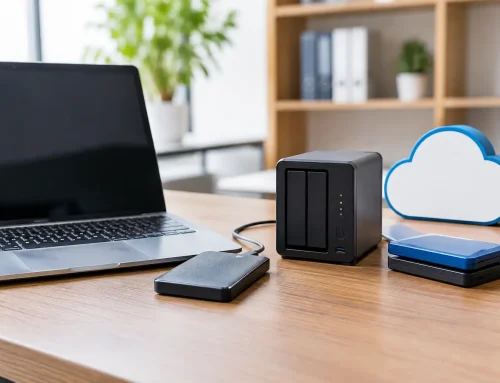
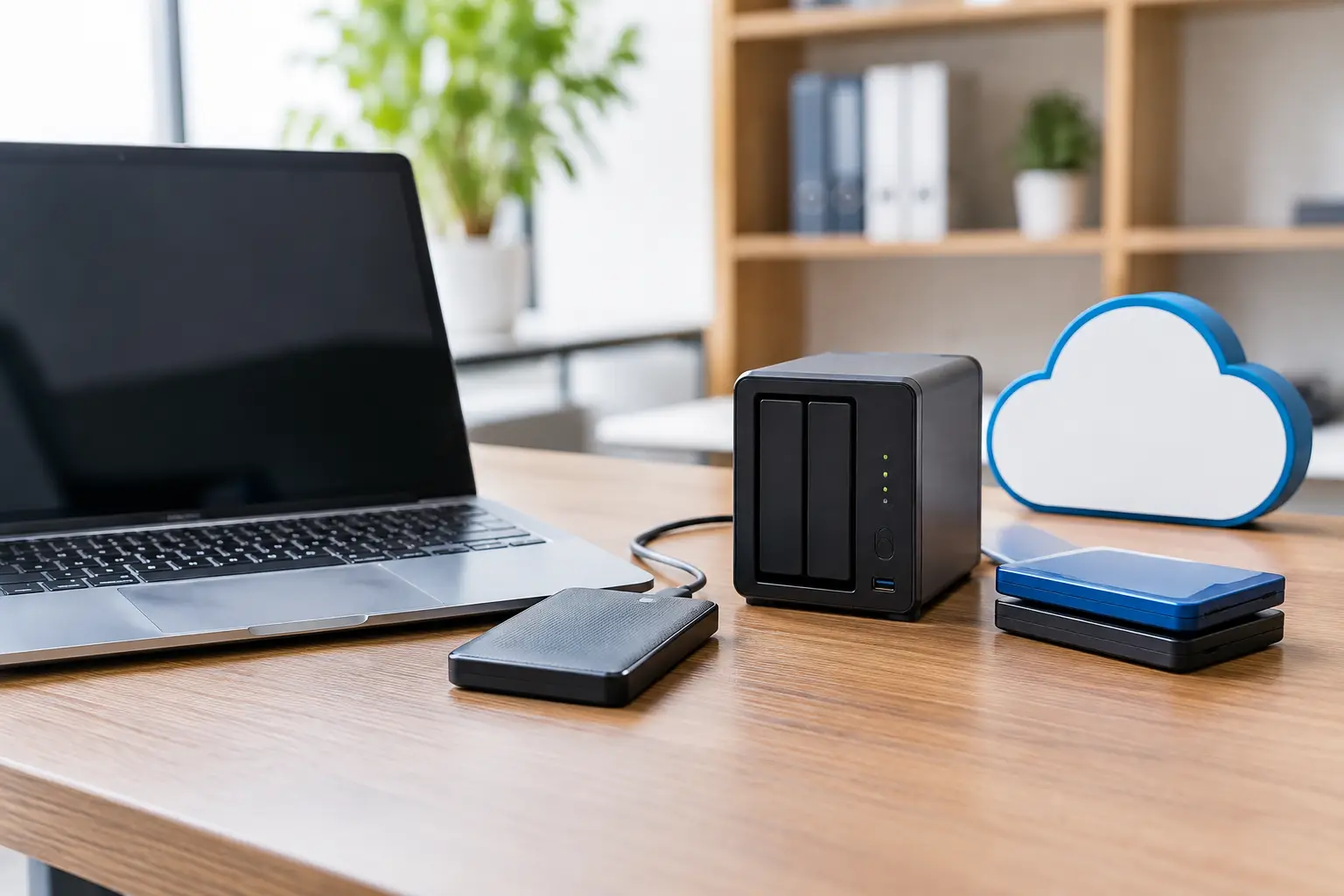
Security is not only about stopping an attack. It is also about being able to carry on after a stolen laptop, failed drive, mistaken deletion or ransomware incident. Time Machine is an excellent first layer for Mac users, especially when the backup drive is disconnected once it has completed.
Keep a second copy away from the computer, ideally in a reputable cloud service or another physical location. A backup drive permanently connected to the Mac can be damaged, stolen or encrypted alongside the original files. Test occasionally that you can find and restore a document. A backup that has never been checked is only a hopeful assumption.
For business records, consider how long documents must be retained and whether your chosen cloud service keeps earlier versions. Version history can be a lifesaver when a spreadsheet has been overwritten or an unexpected sync deletes a folder.
If something feels wrong, act calmly and quickly
A strange login alert, missing files or a payment request sent from your account does not always mean the worst. It does deserve prompt action. First, disconnect the affected Mac from Wi-Fi if you suspect malware or unauthorised remote access. Then change the password for the affected account from a known-safe device, starting with your main email account.
Next, check recent sign-ins and forwarding rules in your email account. Criminals sometimes add hidden forwarding rules so they can read messages even after a password has changed. Tell affected clients or contacts if a fraudulent message may have been sent in your name, and contact your bank straight away if payment details are involved.
Avoid wiping a Mac in panic unless you have good advice and a verified backup. Evidence of what happened can help resolve the issue, and a hasty reset can make recovery harder.
Home office security is not about achieving perfection. It is about making the easy routes into your work, money and personal information much harder to use. If you would like a patient second pair of eyes on a Mac, router, backup or business email set-up, North Dorset Mac Man can help you put the practical basics in place before a small warning becomes a stressful disruption.