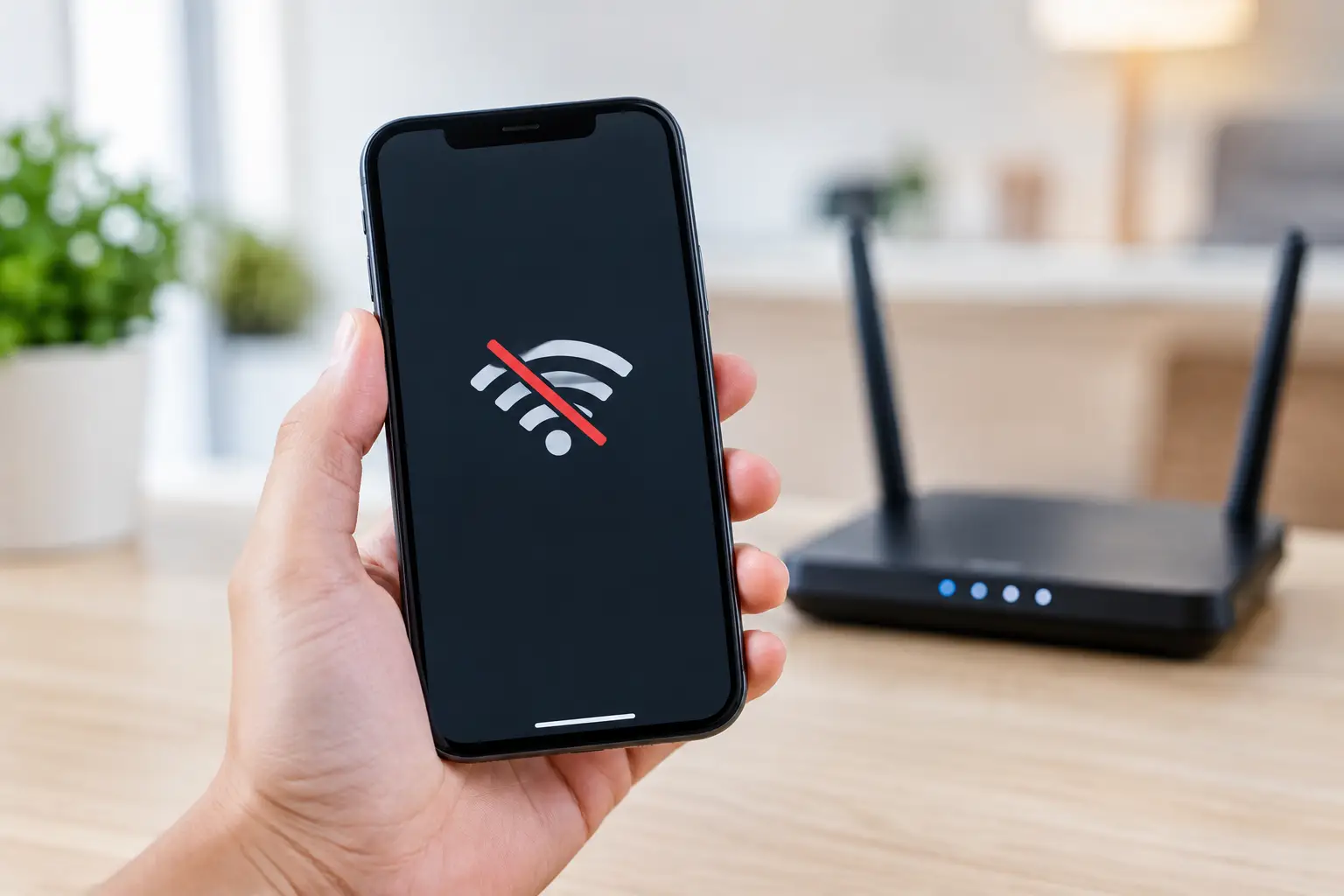
Your iPhone can show full WiFi signal, look as though it has joined the network, and still refuse to load a webpage, send a message or download an email. If you have typed “why wont iphone connect wifi” into a search box after trying the usual switch-it-off-and-on-again routine, the good news is that the cause is often straightforward.
The key is to work out where the fault sits. It could be your iPhone, your broadband router, a saved network setting, or the internet connection itself. A calm, sensible check in the right order usually avoids unnecessary resets and the hassle of setting everything up again.
Start by identifying the type of WiFi problem
Look at the WiFi symbol at the top of the screen and open Settings > Wi-Fi. Is your usual network listed? Does it show a tick beside it? Is there a message such as “No Internet Connection”, “Incorrect Password” or “Unable to Join the Network”? Those details point to different fixes.
Try another device on the same WiFi, such as an iPad, Mac, smart television or someone else’s phone. If nothing in the house or office can get online, your iPhone is unlikely to be the problem. Check whether the router has warning lights, whether the broadband service is down, or whether a loose cable has been disturbed.
If other devices work normally but the iPhone does not, focus on the phone and its saved connection. If the iPhone fails only at one location, such as a café, holiday cottage or client’s premises, it may be that particular network rather than the handset.
Why won’t iPhone connect to WiFi at home?
At home, the most common issue is a router that needs a proper restart. Unplug its power supply, wait at least 30 seconds, then plug it back in. Give it a few minutes to reconnect fully. Avoid pressing a small Reset button on the router unless you know exactly what it does – on many models, that restores factory settings and can remove broadband details.
Before restarting the router, make sure WiFi is enabled on the iPhone. Open Control Centre or go to Settings > Wi-Fi. Turning WiFi off, waiting a few seconds and turning it back on forces the phone to look again for nearby networks. Also check that Airplane Mode is off. It sounds obvious, but it catches people out more often than you might think.
If your network appears but will not accept the password, check carefully for capitals, numbers and similar-looking characters. Router passwords are often printed on a label underneath the device, but they may have been changed since installation. A family member, previous occupier or broadband provider could have altered it.
Forget the network and join it again
When the password is correct but the connection still fails, ask the iPhone to forget that particular network. In Settings > Wi-Fi, tap the information button next to the network name, choose Forget This Network, then reconnect and enter the password again.
This removes the stored password and network details from the iPhone. It is a useful step when a router has been replaced, its password has changed, or the iPhone is hanging on to old information. Do not do this if you do not know the password, particularly in a workplace where the network may be managed by someone else.
Check whether the WiFi is connected but has no internet
A WiFi tick does not always mean you have working broadband. Your iPhone may be connected to the router but unable to reach the internet. Open a couple of different websites or try an app that needs a connection. If some services work and others do not, the issue may be temporary or related to the service itself.
For public WiFi in hotels, cafés, waiting rooms and trains, you may need to accept terms and conditions on a sign-in page before the connection works. Open Safari and try visiting a normal website. This can prompt the sign-in screen. Public networks are also often busy, slow or restricted, so they are not ideal for confidential work, banking or sending sensitive business files.
At home or work, check the router’s status lights and, if practical, test a device connected by Ethernet cable. If wired devices cannot get online either, contact your broadband provider rather than spending hours changing iPhone settings.
Restart the iPhone before changing deeper settings
A restart clears temporary glitches without deleting your photos, apps or settings. On newer iPhones, hold the side button and either volume button until the power slider appears. On models with a Home button, hold the side button until the slider appears. Switch the phone off, wait a short while, then turn it on again.
It is worth checking for an iOS update too. Go to Settings > General > Software Update. Apple updates can correct known network faults, but install them only when you have enough battery power and, ideally, a reliable connection available. If WiFi is unavailable, mobile data may be enough for a smaller update, depending on your allowance and signal.
Also look at Settings > General > Date & Time and ensure Set Automatically is switched on. An incorrect date or time can occasionally interfere with secure connections, especially on networks requiring a web sign-in.
Rule out VPNs, security apps and network restrictions
A VPN can be helpful when you need privacy on public WiFi, but a misbehaving VPN connection can make it seem as though your iPhone has no internet at all. If you use one, temporarily disconnect it and test the WiFi again. The same applies to certain security, filtering or device-management apps.
For small businesses, a phone may be enrolled in mobile device management or subject to network rules designed to protect company information. Guest networks may block printers, shared drives and other local devices by design. In that case, the iPhone may be online perfectly well, but it will not be able to see everything you expect on the office network.
If your iPhone connects to WiFi but cannot print, use AirPlay or access a shared device, check whether the phone and that device are on the same network. Many newer routers separate the 2.4GHz and 5GHz bands, or provide a guest WiFi network. This can be useful for security, but it can cause confusion in homes with printers, smart speakers and Apple TVs.
When should you reset network settings?
Reset Network Settings is a good later-stage option, not the first one to reach for. Go to Settings > General > Transfer or Reset iPhone > Reset > Reset Network Settings. This does not erase your photos, messages or apps, but it does remove saved WiFi networks and passwords, VPN settings and some mobile network preferences.
Use it when the iPhone will not join several known-good networks, keeps disconnecting after the usual checks, or has odd connection behaviour following an update. Make a note of important WiFi passwords first. For a business phone, check with the person responsible for IT before resetting anything that may affect VPN or managed-device access.
A full factory reset is rarely the sensible next step for a WiFi fault. It takes far more time, creates the risk of missed backups and often does not solve an issue caused by the router, broadband line or a hardware problem.
Signs that the problem needs hands-on help
If WiFi is greyed out in Settings, the iPhone cannot see any networks anywhere, or Bluetooth is also behaving oddly, there may be a hardware or software fault that needs closer investigation. This can sometimes follow a drop, liquid damage or a previous repair, though not always.
Repeated broadband dropouts, weak coverage in one part of the building and WiFi that fails whenever several people are online are usually router or network-design problems rather than iPhone faults. In a larger Dorset home, thick walls, outbuildings and older wiring can make one router struggle. A sensible WiFi improvement may involve repositioning equipment or adding suitable coverage, rather than simply buying the most expensive router available.
For households and small firms, the aim is not just to get one phone online for five minutes. It is to have a connection that works reliably for calls, card payments, cloud files, printing, television streaming and the rest of the devices that depend on it. If the checks above have not settled the issue, North Dorset Mac Man can investigate the iPhone, router and wider setup in plain English, at home or at work, so you are not left guessing which bit has gone wrong.